

- How to Calculate Wi-Fi Access Point Demand
- Wi-Fi Coverage vs. Network Capacity
- How Many Wi-Fi Access Points Do I Need?
- Where Should Access Points Be Placed?
- What Wi-Fi Channel Widths Should You Use?
- How Should You Handle IoT Devices on Wi-Fi?
- How to Fix Sticky Wi-Fi Clients and Improve Roaming
- What Do Access Point Speed Ratings Mean in the Real World?
- What Are the Best Access Points for 2026?
- How Much PoE Budget Do Access Points Need?
- How Should You Validate the Design on Site?
- Budget Guardrails for Homes and Small Offices
- FAQs
- References
Size Wi-Fi access points by peak user demand, room geometry, and wired backhaul instead of buying extra radios and hoping they fix the problem.
- One well-placed access point often covers a standard 1,200 to 1,800 sq ft floor, but dense meeting rooms, multi-story layouts, and heavy materials change that quickly.
- Coverage and capacity are different: strong signal in a room does not guarantee enough clean airtime for many active devices.
- Use 20 MHz on 2.4 GHz and start with 20 or 40 MHz on 5 GHz unless testing proves wider channels are stable.
- Lower transmit power and enable 802.11k/v before you start forcing minimum RSSI or fast roaming settings.
- U6 Pro is still the practical Wi-Fi 6 workhorse in 2026, while U7 Pro is the right quote when you want a longer Wi-Fi 7 runway and have PoE+ plus 2.5 GbE planning in place.
- Small office Wi-Fi AP density plan
- Networking & Infrastructure services
- Wired vs wireless: the right mix
How to Calculate Wi-Fi Access Point Demand
Base your access point count on peak concurrent devices and room geometry instead of square footage alone.
Start with the busy hour, not the empty building. Count laptops, phones, tablets, TVs, streaming boxes, conferencing bars, printers, cameras, and IoT devices that will be active at the same time. A quiet 2,500 sq ft home with two people online behaves very differently from a 2,500 sq ft office with twelve staff members on video calls.
Then map the floor plan around where people actually sit and work. Mark desk clusters, conference rooms, bedrooms, living areas, patios, and stair cores. The important question is not how far a signal can travel. The important question is where you need usable airtime when the building is busiest.
Materials matter because they shrink those usable cells fast. Dense walls, wire lath, masonry, concrete, elevator shafts, and metal-backed glass all change the result enough that a pure square-foot estimate becomes unreliable.
| Material | Typical attenuation | Design implication |
|---|---|---|
| Drywall | ~3 dB | Usually manageable with normal room-to-room overlap |
| Brick | ~8 to 10 dB | Often cuts range enough to require shorter coverage cells |
| Concrete | ~10 to 15 dB | Expect much weaker cross-room performance and plan more carefully |
| Plaster with metal lath or metallized glass | Highly variable; often severe | Treat as a site-survey material instead of trusting a generic range estimate |
Wi-Fi Coverage vs. Network Capacity
Coverage means the signal reaches a room, while capacity means the network still has enough clean airtime when many devices are active.
This distinction is where many AP layouts go wrong. A speed test in an empty room can look fine even when the design will collapse during actual use because too many devices share the same radio cell. Oversizing the AP count can make this worse by introducing extra co-channel contention, overlapping cells, and roaming confusion.
Fewer, better-placed APs often outperform a bigger parts list. The practical rule is simple: wire the stationary bandwidth hogs first, then let Wi-Fi handle mobility. Desktops, TVs, streaming boxes, cameras, and office workstations should not consume airtime if Ethernet is available.
How Many Wi-Fi Access Points Do I Need?
For a standard 1,500 sq ft space, start with one centrally located access point and add another only for dense rooms, difficult materials, or multi-story overlap.
Use these baseline counts for the first floor-plan pass, then validate on site. The mistake is not starting with a heuristic. The mistake is treating the heuristic like a final design.
| Space | Square footage or density | Recommended APs | Notes |
|---|---|---|---|
| Open-plan home floor | 1,200 to 1,800 sq ft | 1 AP | Ceiling-center it and add a second only for overlap, patios, or difficult materials |
| Standard two-story home | 1,800 to 3,000 sq ft | 2 APs | One per floor is usually cleaner than overdriving one central AP |
| Small office open area | 1,200 to 1,500 sq ft | 1 AP | Add another when video calls and high client counts overlap heavily |
| Conference room | 6 to 12 active users | Nearby AP | Use a dedicated AP only if meetings are consistently dense |
| Training room or classroom | 20 to 30 laptops | 2 APs | Favor narrow channels and balanced power over maximum width |
| Outdoor patio or deck | Focused outdoor zone | 1 outdoor AP | Do not blast indoor radios outward and expect clean service |
A standard 2,000 sq ft home rarely requires more than two access points. If your first design shows three, check placement, materials, and what should be wired instead.
We can survey the space, trim unnecessary hardware, and validate the final design with walk tests and channel tuning.
Where Should Access Points Be Placed?
Place access points above or near the areas where people actually use devices, not where the ISP handoff or a convenient shelf happens to be.
If only one room is slow, run the one-room Wi-Fi diagnosis before increasing the access-point count.
Ceilings and high walls in open work areas, living rooms, corridors, and collaboration zones are usually the right anchors. For strings of bedrooms or private offices, corridor placement outside the rooms often creates cleaner overlap than mounting one AP inside each small room. Avoid closets, metal shelving, foil-backed insulation, and duct-heavy utility zones.
- Aim for about 15 to 20 percent overlap between cells for smoother roaming
- Keep line-of-sight to seating and desk areas when possible
- Do not place two APs directly across a dense wall from each other
- Keep APs out of cabinets, racks, and decorative enclosures unless the design has been tested that way
- Prefer wired backhaul to every AP instead of relying on wireless mesh hops in fixed buildings
What Wi-Fi Channel Widths Should You Use?
Use 20 MHz on 2.4 GHz and start with 20 MHz or 40 MHz on 5 GHz to maximize stability and reduce overlap in real environments.
Wider channels look impressive on a single speed test, but they collide faster in offices, apartment-heavy neighborhoods, and multi-AP homes. That is why 80 MHz and 160 MHz should be earned through testing, not used as a default. In most mixed-client buildings, cleaner airtime wins over theoretical peak throughput.
- 2.4 GHz: channels 1, 6, or 11 only at 20 MHz
- 5 GHz: start at 40 MHz, and drop to 20 MHz in dense or noisy environments
- 6 GHz: enable where newer clients benefit, but remember range is shorter and placement matters more
- Use DFS only when the site is stable enough to justify it
How Should You Handle IoT Devices on Wi-Fi?
Put low-power IoT devices on a dedicated 2.4 GHz-only SSID and VLAN so they do not slow roaming, security policy, or troubleshooting on primary client networks.
This matters more in 2026 than it did a few years ago because homes and offices now accumulate thermostats, sensors, locks, cameras, printers, and smart appliances quickly. Those devices often behave poorly with band steering, fast roaming features, or mixed authentication policies. A dedicated IoT network keeps them stable and easier to isolate.
The clean pattern is a separate 2.4 GHz SSID, its own VLAN, and firewall rules that allow only the services those devices actually need. Keep laptops, phones, tablets, and conferencing gear on the main client SSID so roaming and airtime stay clean.
How to Fix Sticky Wi-Fi Clients and Improve Roaming
Lower transmit power, enable 802.11k/v, and use minimum RSSI only as a gentle nudge when clients still refuse to roam cleanly.
Sticky clients happen when devices cling to a distant AP long after a closer one is available. High transmit power is the usual cause because the AP keeps shouting loudly enough that the client never feels pressure to move. Start by lowering power from maximum to medium or low, then verify roaming during real movement through the space.
Use 802.11k and 802.11v first because they help most modern clients make better roaming decisions without forcing them. Enable 802.11r only when the device mix is known to support fast roaming without call drops or reconnect issues. Minimum RSSI is a last-mile tuning tool, not a substitute for correct placement.
What Do Access Point Speed Ratings Mean in the Real World?
A multi-gigabit aggregate access point rating does not mean one laptop will see multi-gigabit internet speeds in normal use.
The aggregate number is the total radio capacity across bands, not the speed of one client. A 5.3 Gbps U6 Pro or ~9.3 Gbps U7 Pro can still deliver a much lower single-client result once you account for client radio limits, protocol overhead, wall loss, airtime sharing, and the AP uplink itself. On a 1 GbE uplink, a well-behaved single client often lands in the several-hundred-megabit range rather than anywhere near the box headline.
That is not a failure. It is why design discipline matters more than marketing throughput. If the client mix is mostly ordinary laptops, phones, TVs, and IoT gear, placement and airtime efficiency usually matter more than chasing the largest aggregate number on the spec sheet.
What Are the Best Access Points for 2026?
U6 Pro remains the most cost-effective Wi-Fi 6 workhorse for 2026, while U7 Pro is the default Wi-Fi 7 quote for longer refresh cycles and cleaner 6 GHz planning.
For most new installs, quote both. U6 Pro is still a strong answer because it is inexpensive, stable, and easy on switching requirements. U7 Pro is now priced close enough that it deserves to be in the conversation whenever you are already pulling cable, buying PoE+ switching, and planning for newer 6 GHz-capable clients.
We do not treat U6 Long-Range as the default 2026 recommendation. Its role is narrower, and Ubiquiti's current store listing has it sold out while U6 Pro and U7 Pro remain the cleaner mainstream options. U6+ still works as a lighter-duty budget pick where client density is modest and the goal is simply a clean, inexpensive ceiling AP.
| Choose this | When it makes sense | When it does not |
|---|---|---|
| U6 Pro | You are staying on 1 GbE switching, mostly serving laptops, phones, IoT, and standard office traffic | You want a longer 6 GHz runway or are already refreshing for Wi-Fi 7-capable clients |
| U7 Pro | You are wiring new AP locations, planning PoE+, and want tri-band Wi-Fi 7 with 6 GHz support for a longer cycle | You are not fixing placement, backhaul, or switch constraints and expect the badge alone to solve coverage |
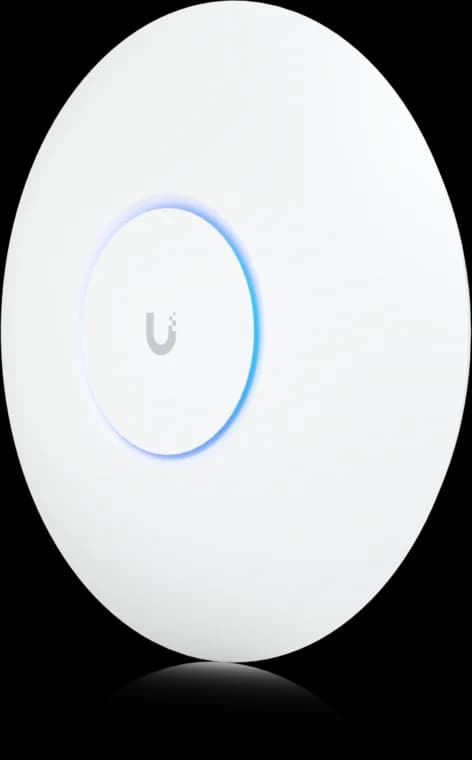
Wi-Fi 6 (802.11ax), 6 spatial streams total
- Dual-band Wi-Fi 6
- 1GbE uplink
- PoE powered
Before you buy: No seller-specific Amazon offer has been verified for this comparison model; the button opens the manufacturer page.
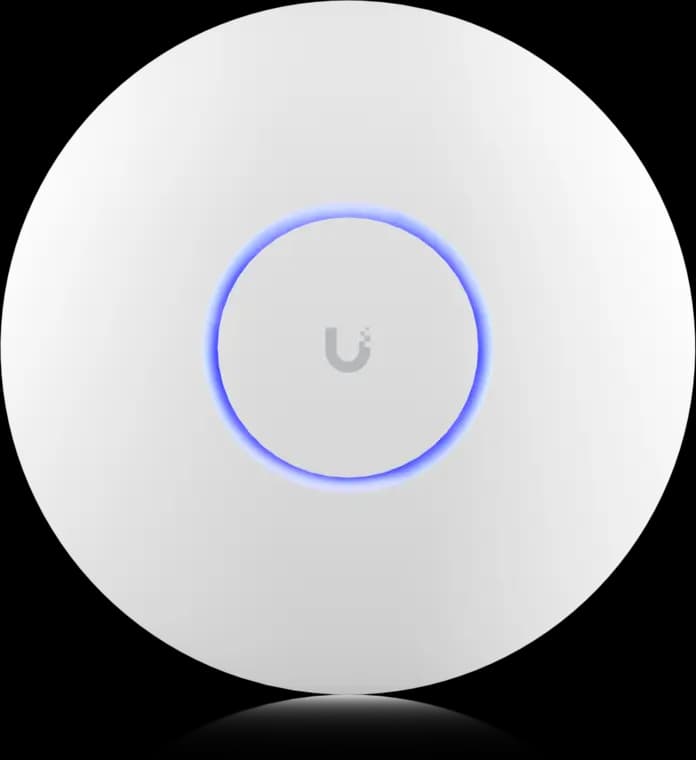
The practical UniFi Wi-Fi 7 baseline for planned ceiling locations: tri-band radios, a 2.5GbE uplink, and controller-based tuning without paying for a 10G AP edge.
- Tri-band Wi-Fi 7
- 2.5GbE uplink
- PoE+ powered
Before you buy: This Amazon link selects Adorama's US-model offer. Confirm Sold by Adorama, New condition, and that the PoE+ adapter is not included.
Dual-band Wi-Fi 6 with 2x2 MIMO for dense rooms
Key details
- Compact, low-profile design ideal for discreet ceiling mounts
- Powered via 802.3af PoE with easy adoption into UniFi Network
How Much PoE Budget Do Access Points Need?
Calculate PoE by total switch budget, not just by per-port compatibility, and leave headroom for startup, future APs, and other powered devices.
This is where many otherwise good refreshes fall apart. It is not enough for a switch to say PoE+. You also need enough total wattage for all APs, plus room for cameras, phones, or future additions. A U7 Pro draws up to about 21W, so an LS108GP with a 62W total budget is realistically a two-U7-Pro switch with comfortable headroom, while a GS308PP at 83W is a practical three-U7-Pro switch. U6 Pro loads are lighter, which makes those switches less restrictive in Wi-Fi 6 deployments.
| Switch | Total PoE budget | Practical U7 Pro count | Why |
|---|---|---|---|
| TP-Link LS108GP | 62W | 2 comfortably | Three would leave very little margin for startup behavior or other PoE devices |
| NETGEAR GS308PP | 83W | 3 comfortably | A fourth U7 Pro would push too close to the total budget |

TP-Link
TP-Link LS108GP
A quiet, fanless option for a small mix of cameras and access points.
Before you buy: Check that the combined PoE load fits the 62W budget.
Key details
- 8 x 802.3af/at PoE+ ports with 62W total budget
- Fanless design with PoE Auto Recovery for APs and cameras
- Strong low-cost fit for quiet rooms and lighter endpoint counts
NETGEAR
NETGEAR GS308PP
A fanless all-rounder for mixed camera and access-point installations.
Before you buy: A higher power budget requires the appropriate optional power supply.
Key details
- 8 x 802.3af/at PoE+ ports with 83W total budget
- Fanless gigabit switch for mixed AP and camera layouts
- FlexPoE support allows expansion to a higher budget with the optional PSU
How Should You Validate the Design on Site?
Walk the common paths, test video calls across AP boundaries, and adjust channels or power only after seeing how clients actually roam.
A fifteen-minute validation walk catches more bad assumptions than another hour of spreadsheet planning. Carry a phone or laptop through the normal movement paths, place two video calls, and watch what happens when the device transitions between APs. Look for sticky roaming, channel noise, and places where the signal is technically present but the experience still feels unreliable.
- Check RSSI and noise with a Wi-Fi analyzer while moving through the real use areas
- Place two consecutive video calls while crossing AP boundaries
- Confirm channels are pinned where needed and not colliding with neighboring networks
- Nudge power or channel width lightly, then re-test instead of changing multiple variables at once
If you do not want to spend time tuning channels, power, and roaming behavior, our technicians can validate the install and hand off clean documentation.
Budget Guardrails for Homes and Small Offices
Most two-story homes land at two well-placed APs, while many small offices land at three to five depending on meeting density, wall materials, and wired backhaul options.
That is the right place to start budgeting, not the marketing claim on the AP box. If the site is older, denser, or more meeting-heavy, expect the design effort to matter more than the AP unit price. Predictive heat maps and on-site validation become worth paying for when the cost of bad roaming, repeated help desk calls, or client-facing meeting failures is higher than the cost of one proper survey.
FAQs
Do I need Wi-Fi 7 for a new install in 2026?
Not always, but you should usually price it. U6 Pro remains the safe Wi-Fi 6 workhorse, while U7 Pro is close enough in cost that future-proofing can make sense when the cabling, PoE+, and client mix support it.
Will adding more access points always improve performance?
No. Extra APs can increase co-channel contention and create worse roaming behavior if placement, power, and channels are not tuned. Start with fewer, well-placed APs and validate.
Is mesh acceptable for homes?
Yes, but wired backhaul is still preferred. Wireless mesh can work for lighter use, but Ethernet keeps airtime free for clients and usually delivers steadier latency for calls and streaming.
Should IoT devices be on the main SSID?
Usually no. A separate 2.4 GHz-only IoT SSID and VLAN keeps those devices simpler to manage and prevents them from cluttering the main client network.
How should I handle DFS channels?
Use DFS only if your area is stable enough to justify it. If radar events or dropouts appear, move back to clean non-DFS channels and re-test at narrower widths.
References
- Ubiquiti Tech Specs: UniFi U7 Pro. Checked March 11, 2026.
- Ubiquiti Tech Specs: UniFi U6 Pro. Checked March 11, 2026.
- Ubiquiti Store: U7 Pro. Checked March 11, 2026.
- Ubiquiti Store: U6 Pro. Checked March 11, 2026.
- Ubiquiti Store: U6 Long-Range. Checked March 11, 2026.
- TP-Link: LS108GP. Checked March 11, 2026.
- NETGEAR: GS308PP. Checked March 11, 2026.
Plan the wiring and Wi-Fi with a site visit
Walk the space with us to settle cable routes, rack location and access point placement before anything is installed.