

- What this covers
- High-Impact Network Upgrades
- Where Should You Place a Wi-Fi Access Point?
- Ethernet vs. Wi-Fi for Stationary Devices
- Should You Choose Cat6 or Cat6A Cable?
- How Much PoE and Switching Headroom Should You Plan?
- What Does a New Ethernet Drop Cost in 2026?
- Tools We Trust for Quick Validation
- Simple Security and Maintenance That Prevent Repeat Problems
- Typical Hardware Planning Horizon
- Mini case study: choppy calls in White Plains
- Quick checklist
- Next steps
- At-a-glance decisions
- FAQs
- Disclosure
- References
What this covers
These are the network changes most likely to improve stability in Westchester homes and small offices without forcing a full rebuild. The emphasis is simple: place Wi-Fi correctly, wire the devices that should never depend on airtime, choose the right cable for the job, and leave enough switching and PoE headroom that the next upgrade is straightforward.
If you’re in Westchester County and want help planning or installing a clean, reliable network, our team can handle the design, wiring and hand-off documentation.
- Networking & Infrastructure services
- What Is Wi-Fi 7 — and Should You Upgrade Now or Wait?
- Network Cabling Cost: How to Plan Your Budget
- Wired vs Wireless: The Right Mix
High-Impact Network Upgrades
Start by moving Wi-Fi into the open, wiring fixed devices, labeling ports, and sizing PoE with headroom before buying more hardware.
These are the fastest low-risk upgrades we see pay off in real homes and offices. They do not require exotic gear. They require better placement, cleaner cabling choices, and enough documentation that the next service call starts with facts instead of guesswork.
- Place Wi-Fi where people actually use devices, not in a closet behind ductwork
- Prefer Ethernet for stationary gear such as desktops, TVs, printers, docks, and cameras
- Label rack ports and wall plates; save a photo of the finished rack
- Update firmware on a schedule and confirm behavior afterward
- Keep a few tested spares in the rack: patch leads, optics, and one known-good cable tester
A labeled rack cuts troubleshooting time dramatically — and makes remote help easier.
Where Should You Place a Wi-Fi Access Point?
Mount Wi-Fi access points centrally on high walls or ceilings in open areas, away from metal cabinets, HVAC ducts, and dense masonry.
Coverage and clean airtime matter more than maximum transmit power. A ceiling or high-wall AP near desks, seating, or work zones almost always behaves better than a single all-in-one router hidden at the ISP handoff. In the U.S., keep 2.4 GHz to non-overlapping channels 1, 6, or 11. On 5 GHz and 6 GHz, use automatic planning only when the controller handles DFS events cleanly and the client mix is not overly fussy.
For most homes and small offices, fewer SSIDs are also better. Every extra broadcast adds overhead and roaming complexity. In practice, a main SSID, a guest SSID, and sometimes a separate IoT network is enough.
-
Mount APs in open areas; avoid metal cabinets and dense masonry
-
Right-size transmit power so phones roam to the nearest AP
-
Band-steer modern devices to 5 GHz and 6 GHz where possible
-
Limit to the SSIDs you actually use (guest, main, maybe IoT)
Does Wi-Fi 7 Change Placement Rules?
Wi-Fi 7 does not change the placement fundamentals. It raises the payoff for getting them right.
Wi-Fi 7 adds Multi-Link Operation, wider 320 MHz channels in 6 GHz, and more efficient scheduling. Those gains show up best when the AP has a clean path to clients and a wired backhaul that is not bottlenecked at 1 GbE. Many current Wi-Fi 7 access points ship with 2.5 GbE uplinks, so poor uplink planning now wastes what the radio can do later.
If you are buying new access points in 2026, Wi-Fi 7 is worth evaluating. If you are trying to solve dropouts today, placement, cabling, and channel discipline still matter more than the badge on the box.
How Do Plaster-and-Lath Walls Affect Wi-Fi in Westchester?
Older Westchester homes often need more deliberate AP placement because plaster, metal lath, stone fireplaces, and dense chimneys punish 5 GHz and 6 GHz far more than modern drywall.
That does not mean every older house needs a full commercial build. It means you should plan shorter coverage cells, more corridor or ceiling placements, and more wired backhaul. Trying to blast through a 100-year-old colonial with one router in a utility closet usually produces sticky roaming, poor uploads, and dead spots exactly where people take calls.
-
Expect higher AP density in plaster, stone, or metal-heavy rooms
-
Prefer corridor or central ceiling placements over perimeter rooms
-
Wire APs to each floor or wing instead of relying on long wireless hops
-
Treat 6 GHz as the shortest-range band and validate it room by room
Ethernet vs. Wi-Fi for Stationary Devices
Hardwire stationary devices like desktops, televisions, printers, and access points so Wi-Fi airtime stays available for mobile clients.
If it does not move, wire it. Wired links remove the variable of radio contention, reduce retransmits, and make troubleshooting much easier. This is still true in 2026, even with strong Wi-Fi 7 gear. Ethernet is the cleaner answer for TVs, desktop docks, consoles, printers, cameras, NAS units, and nearly every ceiling AP.
Where pulling new cable is difficult, MoCA 2.5 over existing coax can be a reliable bridge. It is not a substitute for clean structured cabling everywhere, but it is often far better than asking a long wireless hop to carry calls, streaming, and printer traffic at the same time.
-
Wire TVs, desktop docks, consoles, printers and cameras
-
Use short, certified patch leads; avoid mystery bulk cable
-
If pulling new cable, home-run to a ventilated rack/closet
-
Consider MoCA when coax is available and new cable is not practical
Should You Choose Cat6 or Cat6A Cable?
Choose Cat6A for open-wall new work, AP uplinks, rack/backbone links, and longer or noisier runs; use Cat6 for many short room drops and tighter retrofits.
Cat6 is still a useful cable category in 2026. It handles gigabit to 100 meters, supports multigig on modern 802.3bz gear, and can support 10 GbE on shorter clean runs. Cat6A is the better choice when you want 10 GbE to the full 100 meters, more margin against alien crosstalk, or a stronger long-term fit for multi-gig access points and rack uplinks.
The practical rule is not "Cat6A everywhere." It is "use Cat6A where the run is expensive to revisit or where multi-gig performance is already realistic." In finished Westchester retrofits with tight chases and delicate surfaces, Cat6 can still be the smarter pull to many standard room endpoints. In open walls, new additions, office ceilings, and critical AP/backbone paths, Cat6A should be the default discussion.
-
Label both ends (rack port and wall plate) — use a consistent scheme
-
Respect bend radius and termination guides; test links if possible
-
Use patch panels for organization; keep service loops reasonable
How Much PoE and Switching Headroom Should You Plan?
Plan PoE and switch capacity for today’s devices plus roughly 30 to 50 percent headroom so the next AP, camera, or door controller does not force a replacement.
This is one of the highest-value planning decisions in a small network. Modern APs, cameras, and access systems quickly consume both watts and ports. A switch that looks adequate on day one often becomes the bottleneck when another AP, camera, or Wi-Fi 7 uplink is added six months later.
- Plan PoE budget for APs, cameras, door controllers — add 30–50% headroom
- Mix 1G/2.5G/10G ports based on uplinks and NAS needs
- Add a small UPS for graceful shutdown and surge protection
What Does a New Ethernet Drop Cost in 2026?
For planning, a basic wiring run in January 2026 starts around $291 to $349 before harder routing, finish work, or local retrofit complexity raise the number.
That baseline comes from the Homewyse January 2026 calculator and is useful because it gives a real floor for one wiring run with layout, routing, termination, and testing. In Westchester, finished-home retrofits usually move above that baseline once plaster, masonry, attic routing, patch coordination, or multi-story fishing are involved. In small offices with easier access, straightforward Cat6 drops often land around $150 to $250 per drop, while harder Cat6A, plenum, certification, or after-hours work commonly lands around $200 to $350 or more per drop.
Treat those numbers as planning ranges, not quote-ready promises. The real drivers are construction type, number of grouped drops, access path quality, whether surfaces are already open, and whether final documentation and testing are included.
| Scenario | Typical 2026 planning range | What pushes cost higher |
|---|---|---|
| Single wiring run baseline | $291–$349 per run | Difficult access, finish protection, patch/paint, longer routes |
| Small office Cat6 drop | $150–$250 per drop | After-hours work, plenum spaces, grouped cut-over requirements |
| Complex Cat6A or retrofit office drop | $200–$350+ per drop | Cat6A, certification, masonry, patch coordination, long pulls |
Use planning ranges to decide whether the project is worth scoping. Use a site walk to decide what the final quote should be.
Tools We Trust for Quick Validation
You do not need a lab to confirm that a network changed for the better. A short walk with the right tools reveals sticky roaming, weak uploads, and bad terminations quickly.
-
Phone Wi-Fi analyzer: check RSSI and channel use while walking
-
Laptop call test: place two calls and walk between AP cells
-
Switch/AP dashboards: watch client counts and retry rates
-
Cable tester: verify new terminations before finalizing installation

The practical UniFi Wi-Fi 7 baseline for planned ceiling locations: tri-band radios, a 2.5GbE uplink, and controller-based tuning without paying for a 10G AP edge.
- Tri-band Wi-Fi 7
- 2.5GbE uplink
- PoE+ powered
Before you buy: This Amazon link selects Adorama's US-model offer. Confirm Sold by Adorama, New condition, and that the PoE+ adapter is not included.
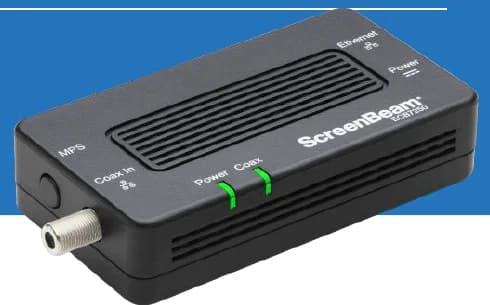
A two-adapter option for wired backhaul when a usable coax path already connects the router area and a weak room.
- 2 adapters in kit
- 2.5GbE port per adapter
- Uses existing coax
Before you buy: Confirm both outlets share a compatible coax system. Satellite and some provider setups are incompatible; DOCSIS 3.1 can conflict. Check splitters and any required point-of-entry filter before buying.
10G‑rated Cat6A with larger bend radius
Key details
- Solid copper conductors for higher PoE loads
- Riser-rated bulk cable suitable for structured cabling backbones

Klein Tools
Klein Tools VDV526-100 LAN Cable Tester
A basic wiremap check for an accessible, disconnected Ethernet run when you can reach both ends.
Before you buy: Use only on unpowered cable with permission or after taking possession. It finds opens, shorts and miswires, but does not certify cable speed or replace a professional test report.
Key details
- Verifies pinout and continuity on Ethernet runs
- Remote terminator for one‑person testing
- Useful when validating new backhaul runs
Simple Security and Maintenance That Prevent Repeat Problems
Keep admin credentials unique, separate guest and IoT traffic from work devices, and stage firmware changes so you can verify behavior before calling the job done.
A few habits prevent a disproportionate amount of repeat trouble. They also make small businesses and busy households easier to support when something changes months later.
- Unique admin credentials; disable unused services and SSIDs
- Guest SSID/VLAN for visitors; separate IoT from laptops/phones
- Schedule firmware updates; verify post-update behavior
- Document ISP info, VLANs, port roles and device names
Set a recurring calendar reminder for firmware and quick health checks.
Typical Hardware Planning Horizon
These are planning horizons, not failure guarantees. The goal is to budget refresh cycles realistically.
| Component | Typical planning horizon | Notes |
|---|---|---|
| Access points | 4–5 years | Refresh sooner when client density or Wi-Fi standards change materially |
| Gateway / firewall | 5–7 years | Shorter if ISP speed, VPN, or security demands rise |
| Managed switches | 7–10 years | Replace sooner if PoE budget or port speeds become limiting |
| Copper cabling | 15–20 years | Longer when installed cleanly, labeled well, and matched to the use case |
Mini case study: choppy calls in White Plains
A small accounting office in White Plains had gigabit internet but daily choppy Zoom calls and printers that vanished. The Wi-Fi router lived in a closet behind metal ductwork; everything else was wireless. We moved the AP to a ceiling location near desks, added two Ethernet drops for the printer and a desktop dock, labeled the rack and wall plates, and set modest transmit power so phones roamed cleanly.
Result: calls stabilized, print issues disappeared, and staff stopped tethering phones for meetings. No exotic hardware — just correct placement, a couple of cables, and tidy labeling.
Quick checklist
- Move Wi-Fi out of closets and away from metal; mount high and central
- Prefer Ethernet for stationary gear; consider MoCA where coax exists
- Label ports and plates; keep a rack photo and a one-page legend
- Right-size PoE and leave headroom for APs/cameras
- Limit SSIDs; keep guest and IoT separate
- Schedule firmware updates; verify behavior afterward
Next steps
If these quick wins help but you still see busy areas, sticky roaming, or rooms that never behave, it is time for a simple site survey and a wiring plan. We handle floor-plan design, neat cabling, Cat6/Cat6A decisions, PoE sizing, and hand-off documentation so changes stay supportable.
At-a-glance decisions
| Question | Choose | Why |
|---|---|---|
| TVs/desktops jitter on Wi-Fi? | Wire them (Ethernet) | Frees wireless airtime; removes retries |
| Router in a closet? | Move AP to open area | Placement beats raw power |
| Open walls or key AP uplinks? | Discuss Cat6A | Stronger long-term fit for multi-gig and 10G planning |
| Many SSIDs? | Consolidate to 2–3 | Less overhead; better roaming |
| Adding cameras soon? | Leave PoE headroom | Avoid mid-cycle switch replacement |
FAQs
Is Ethernet always better than Wi-Fi?
For stationary devices, yes — wired links are more predictable and free up Wi-Fi airtime. Use Wi-Fi where mobility matters.
Do I need Cat6A everywhere?
No. Use Cat6A for open-wall new work, key AP uplinks, rack/backbone links, or long/noisy paths. Cat6 is still reasonable for many short room drops and tighter finished-wall retrofits.
How many access points do I need?
Depends on layout and materials. As a rough start, 1 AP per about 1,200–1,500 sq ft, placed centrally and away from obstructions.
Should I use DFS channels at home or in a small office?
Only if you have tested them and your client mix behaves well. DFS can reduce congestion, but radar events can force channel changes that some devices handle poorly.
Disclosure
Disclosure: Some recommendations may include affiliate links to retailers like Amazon. If you buy through these links, we may earn a small commission at no extra cost to you. We only recommend products that are appropriate for the job and provide alternatives when helpful.
References
- Cisco Wireless RF Reference Guide — updated April 18, 2024; checked March 6, 2026
- Wi-Fi Alliance: Wi-Fi CERTIFIED 7 — checked March 6, 2026
- MoCA Alliance: Standard MoCA Home 2.5 — checked March 6, 2026
- CommScope: Cat 6A Fact File — checked March 6, 2026
- Cisco: Transform the Workspace with Cisco Multigigabit Ethernet — updated May 13, 2022; checked March 6, 2026
Plan the project with a site visit
Confirm wiring, equipment, placement, and installation scope before hardware is locked in.