

- What this guide covers
- Wired vs. wireless — the quick answer
- When is a wired Ethernet network the better choice?
- When is Wi-Fi the better choice in 2026?
- How does Wi-Fi 7 change the wired vs. wireless decision?
- How to place Wi-Fi access points to reduce interference
- Security: wired vs. wireless
- How should a hybrid network support smart homes?
- What does it cost to add Ethernet in 2026?
- What hardware should you size with the cabling?
- Recommended planning gear
- Frequently Asked Questions: Wired vs. Wireless Networks
- Checklist
- References
What this guide covers
This guide explains when to choose wired Ethernet versus Wi-Fi, how Wi-Fi 7 changes the conversation in 2026, and why most homes and small offices still perform best with a hybrid layout. The goal is straightforward: smooth calls, stable streaming, predictable smart-home behavior, and simple support without buying hardware you do not need.
- Networking & Infrastructure services
- UniFi Network & Wireless Installation
- What Is Wi-Fi 7 — and Should You Upgrade Now or Wait?
- Matter & Thread Explained (2026): Smart Home Guide
Wired vs. wireless — the quick answer
Most homes should wire fixed, high-priority devices and reserve Wi-Fi for portable clients.
- Use wired Ethernet for desktops, TVs, streaming boxes, game consoles, access points, cameras, and NAS devices
- Use Wi-Fi for phones, tablets, laptops, and rooms where opening walls is not worth the cost
- Build a hybrid network when you want reliable coverage without forcing every device onto a cable
Ethernet gives each device a dedicated full-duplex path, while Wi-Fi is shared airtime. That is why a single wired TV or desktop often improves not only that device, but the rest of the wireless network too.
When is a wired Ethernet network the better choice?
Use wired Ethernet for stationary devices that need low latency, steady throughput, or Power over Ethernet.
If a device rarely moves and matters when the network is busy, wire it. That includes desktop PCs, conference-room systems, media players, gaming consoles, NAS units, and nearly every ceiling access point or PoE camera. Wired links remove airtime contention, reduce retransmits, and make troubleshooting far easier than chasing a wireless edge case.
Cat6 should also be described correctly. In 2026, standard Cat6 is not just a 1 Gb/s cable. It supports 1 Gb/s to 100 meters, multigig speeds on modern 802.3bz gear, and 10 Gb/s up to 55 meters in the right environment. Cat6A is the safer choice when you need 10 Gb/s to the full 100 meters or want more margin for long uplinks and noisy pathways.
- Wire primary workstations that host video calls, uploads, backups, or VPN sessions
- Wire streaming boxes and TVs so background viewing does not consume Wi-Fi airtime
- Wire APs, cameras, door hardware, and hubs that benefit from PoE and predictable uptime
- Use Cat6 for most room drops and Cat6A for long 10G runs, rack uplinks, or sustained multi-gig links
When is Wi-Fi the better choice in 2026?
Use Wi-Fi where mobility matters more than hard guarantees.
Phones, tablets, and laptops are the obvious candidates, but Wi-Fi is also the right answer in rentals, finished spaces with difficult access, and short-term layouts that may change within a year or two. The mistake is not using Wi-Fi. The mistake is expecting one consumer router in a closet to deliver the same performance everywhere as a wired network with correctly placed access points.
Modern Wi-Fi can be excellent when the design matches the building. That means access points placed where people actually use devices, not where the ISP drop happens to land. It also means accepting that dense walls, metal objects, HVAC cavities, mirrors, masonry, and neighboring networks all change the result.
- Choose Wi-Fi for portable devices and rooms that need flexibility
- Choose Wi-Fi first when cable access would require disruptive finish work for little practical benefit
- Add more properly placed APs before buying a larger all-in-one router
- Treat Wi-Fi as a coverage system, not a single-box specification contest
How does Wi-Fi 7 change the wired vs. wireless decision?
Wi-Fi 7 narrows the latency and throughput gap, but it does not eliminate the reasons to wire fixed devices.
By early 2026, Wi-Fi 7 is no longer a lab feature. The important change is Multi-Link Operation, or MLO, which lets compatible clients transmit and receive over multiple links for higher throughput, lower latency, and better reliability. In plain terms, Wi-Fi 7 is better at avoiding congestion and recovering from bad airtime than earlier generations.
That matters most on busy networks. A strong Wi-Fi 7 deployment with wired AP backhaul can feel dramatically better than older Wi-Fi 5 or Wi-Fi 6 installs, especially for roaming laptops, phones, and media devices that move around the house. If your APs and clients support 6 GHz, wider 320 MHz channels can also push real multi-gig performance in the right rooms.
What Wi-Fi 7 does not change is the physics of shared radio. Wireless is still half-duplex, still sensitive to building materials, and still dependent on the capabilities of both the AP and the client. A Wi-Fi 7 desktop can be fast; a wired desktop is still more predictable. For that reason, we still wire workstations, TVs, NAS devices, cameras, and access-point backhaul even in premium Wi-Fi 7 projects.
Wi-Fi 7 is a major upgrade for mobile devices and well-designed wireless coverage. It is not a reason to stop pulling Ethernet to fixed infrastructure.
How to place Wi-Fi access points to reduce interference
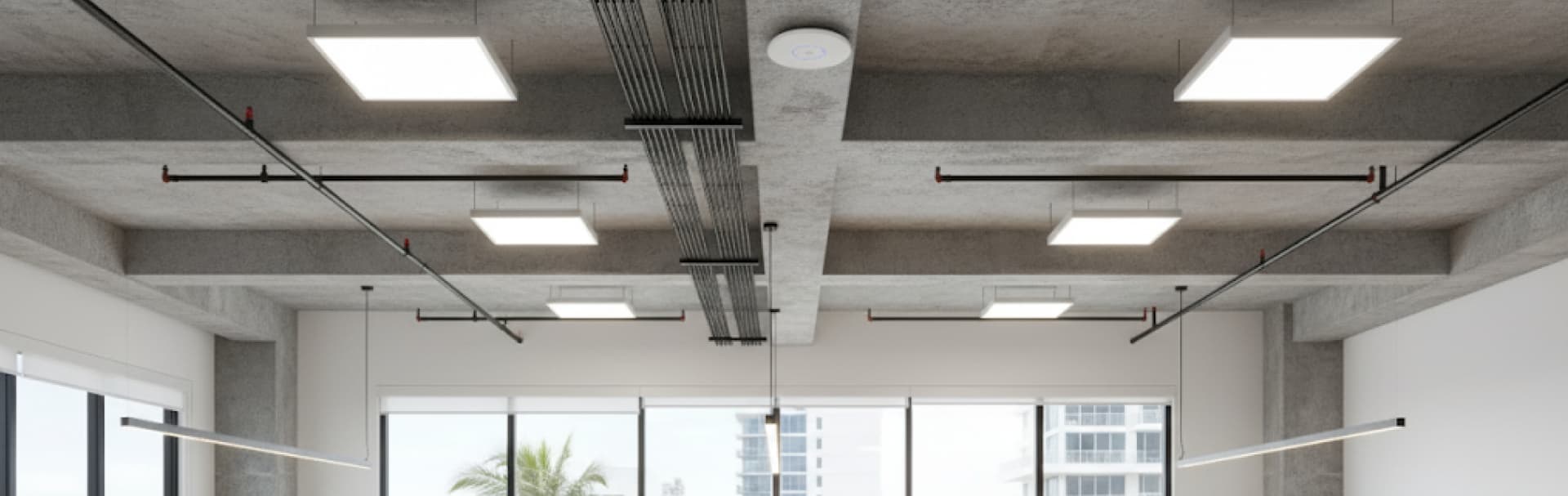
Mount access points centrally in open areas and keep them away from metal, dense walls, and concealed utility spaces.
Placement is more important than the number printed on the box. In a typical wood-frame home, one properly placed AP per floor is a reasonable starting point. Larger layouts, long colonials, additions, stone interiors, and detached work areas usually need more than that. The right answer comes from where people use devices and what the building is made of.
For 2026 planning, use 5 GHz and 6 GHz for newer clients whenever possible and leave 2.4 GHz for legacy and IoT devices. In dense neighborhoods, conservative channel widths usually outperform theoretical maximums. That often means 20 MHz on 2.4 GHz, and 20 MHz or 40 MHz on 5 GHz unless the RF environment is unusually clean.
DFS also deserves a plain-language warning. DFS channels can help in crowded 5 GHz environments, but radar events can force an access point to stop broadcasting and move channels. Some clients recover cleanly; some smart-home and low-cost devices do not. If the house is full of fussy IoT gear, voice devices, or older clients, stability may be better on non-DFS channels.
- Mount APs on ceilings or high walls in open, central areas
- Avoid cabinets, media enclosures, return plenums, and large metal obstructions
- Use 5 GHz and 6 GHz for modern devices; keep 2.4 GHz for legacy and IoT
- Stay conservative with channel width in dense areas to reduce co-channel contention
- Use DFS only when you understand the interruption tradeoff and have validated device behavior
Security: wired vs. wireless
Wired networks are less exposed to casual outside interception, while Wi-Fi depends on strong configuration to stay secure.
A wired connection still requires physical access to a jack, patch panel, or switch port. That does not make it automatically secure, but it does remove the drive-by radio exposure that every wireless network has. Wi-Fi broadcasts into the air by design, so your security posture depends on encryption, segmentation, and device hygiene.
For homes and small offices, the baseline in 2026 should be WPA3 where client support allows it, a separate guest network, and a separate SSID or VLAN for IoT gear that does not need access to workstations or file storage. Sensitive devices such as NVRs, NAS units, office desktops, and core smart-home controllers are best kept on wired or segmented infrastructure.
- Use WPA3 on primary wireless networks when your device mix supports it
- Keep guest traffic off the main LAN
- Segment IoT devices from workstations, storage, and cameras
- Wire critical devices that should never depend on noisy household airtime
How should a hybrid network support smart homes?
A reliable smart home usually depends on both Ethernet and wireless protocols, not one or the other.
Matter runs over standard IP networking, which means devices may use Wi-Fi, Thread, or Ethernet depending on the product. In practice, that makes a hybrid network even more valuable. Your border router, gateway, access points, cameras, streaming boxes, and main control hubs benefit from stable wired infrastructure, while low-power sensors, locks, and mobile devices stay on wireless transports that fit their role.
Apple and SmartThings are good examples. Current Apple support documents list Thread-capable Apple TV and HomePod models, and SmartThings distinguishes between controller models that do and do not include a Thread border router. The practical lesson is simple: do not assume every hub can perform every network role. Verify the model, keep the core hub path stable, and avoid forcing your main smart-home brain to share weak Wi-Fi with everything else in the building.
If you want a smart home that feels local and responsive, wire the devices that anchor the system and let Thread or Wi-Fi handle the edge devices that actually need mobility or low power.
- Keep your main router, switches, APs, and media boxes on Ethernet
- Verify that your preferred hub or controller actually includes a Thread border router if you need one
- Use Thread or Wi-Fi for sensors, buttons, locks, and other low-power endpoints
- Read more in Matter & Thread Explained (2026)
What does it cost to add Ethernet in 2026?
Budget roughly a few hundred dollars per new line in a finished home, with labor difficulty driving most of the spread.
For planning purposes in 2026, an accessible finished-home Cat6 drop often lands around the high two hundreds to mid three hundreds per run once cutting, fishing, termination, and testing are included. Easy unfinished-basement or open-wall work can be lower. Plaster, masonry, exterior cameras, difficult attic paths, and patch-and-paint coordination push the number higher. New construction and renovation rough-in are still the lowest-cost moments to add cable.
Timelines move the same way. A few drops and one access point can often be handled in a day. A whole-home retrofit or multi-room office refresh typically takes longer because route planning, finish protection, patching, and validation matter more than cable cost.
- Small addition: a few new drops plus one AP, often one day
- Retrofit: finished walls, attic or crawl routing, patch/paint coordination, usually longer and more variable
- Pre-wire: lowest labor per drop and the best time to add spare lines for future APs, cameras, or desks
Unsure whether your space needs a full retrofit or just better AP placement? Request a site survey in Westchester County.
What hardware should you size with the cabling?
Match the gateway, switch, and uplinks to the workload, not just the ISP marketing number. If you are still choosing an internet provider, the AT&T Fiber vs Spectrum vs Xfinity comparison covers how speed tiers and upload speeds differ before the signal reaches your internal network.
Most homes and small offices do not need a full 10G rebuild, but many benefit from smarter port choices. A 2.5G uplink to a modern AP, a PoE switch with real wattage headroom, and a single multi-gig path to a NAS or workstation often deliver a better result than overspending everywhere else. The useful question is not "what is the fastest hardware?" It is "which parts of this network actually carry meaningful traffic?"
- Size the gateway for your ISP tier with margin for VPN, filtering, or IDS features
- Size PoE for APs, cameras, door hardware, and at least one or two future devices
- Use 1G where it is sufficient, 2.5G where APs or NAS links benefit, and 10G selectively
- Label ports and keep a simple legend so future changes do not become guesswork
Recommended planning gear
These are the kinds of products we typically reach for when testing, bridging, or planning a hybrid network.

The practical UniFi Wi-Fi 7 baseline for planned ceiling locations: tri-band radios, a 2.5GbE uplink, and controller-based tuning without paying for a 10G AP edge.
- Tri-band Wi-Fi 7
- 2.5GbE uplink
- PoE+ powered
Before you buy: This Amazon link selects Adorama's US-model offer. Confirm Sold by Adorama, New condition, and that the PoE+ adapter is not included.
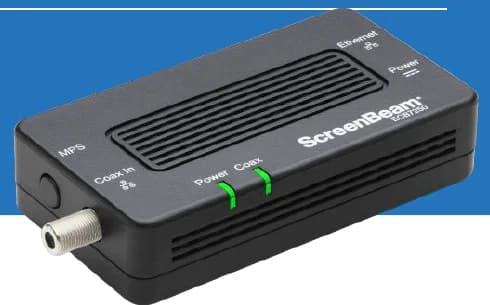
A two-adapter option for wired backhaul when a usable coax path already connects the router area and a weak room.
- 2 adapters in kit
- 2.5GbE port per adapter
- Uses existing coax
Before you buy: Confirm both outlets share a compatible coax system. Satellite and some provider setups are incompatible; DOCSIS 3.1 can conflict. Check splitters and any required point-of-entry filter before buying.
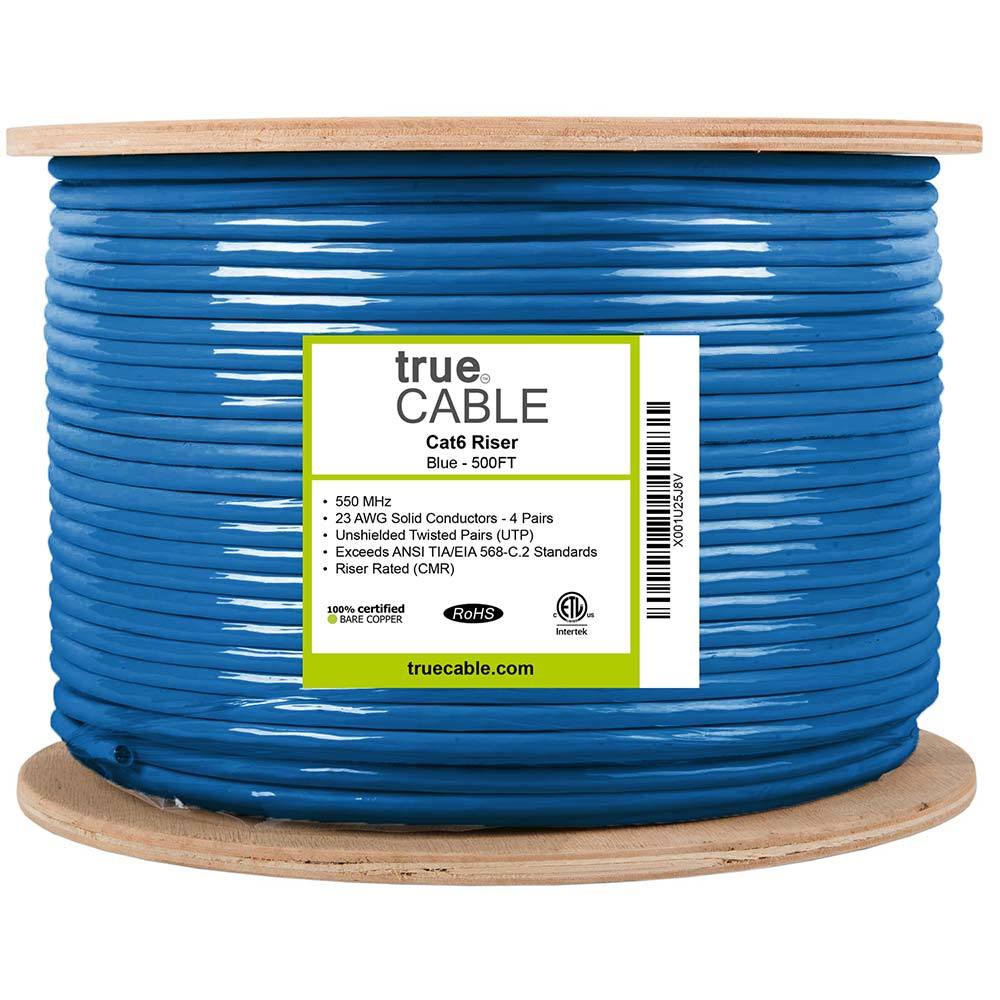
1000 ft riser-rated Cat6 bulk cable for in-wall structured cabling
Key details
- 23AWG solid bare copper conductors suitable for PoE and data runs
- CMR jacket and ETL listing for residential and commercial riser use

Klein Tools
Klein Tools VDV526-100 LAN Cable Tester
A basic wiremap check for an accessible, disconnected Ethernet run when you can reach both ends.
Before you buy: Use only on unpowered cable with permission or after taking possession. It finds opens, shorts and miswires, but does not certify cable speed or replace a professional test report.
Key details
- Verifies pinout and continuity on Ethernet runs
- Remote terminator for one‑person testing
- Useful when validating new backhaul runs
Frequently Asked Questions: Wired vs. Wireless Networks
Is Ethernet always faster than Wi-Fi?
Ethernet is still the more stable and lower-latency option for sustained workloads. Wi-Fi 7 can be extremely fast in the right room with the right client, but fixed devices still perform more predictably on a cable.
Do I need Cat6A everywhere?
No. Cat6 is still the right default for many room drops. Use Cat6A when you need 10 Gb/s to 100 meters, want more margin on long uplinks, or expect sustained multi-gig traffic in those runs.
How many access points do I need?
Often one per floor in a typical wood-frame home is a reasonable starting point, but building materials and layout matter more than square footage alone. Validate in the real space before assuming one AP can do everything.
Is mesh Wi-Fi bad?
No. Mesh can be perfectly acceptable for small gaps or rental layouts. Wired backhaul is still better when you can install it, because the APs do not need to spend airtime talking to each other.
Should I use DFS channels at home?
Sometimes, but not automatically. DFS can open cleaner 5 GHz channels in crowded RF environments, but radar events can force channel changes and temporary interruptions. If you have sensitive IoT gear or older clients, non-DFS channels are often the safer default.
- Get a networking quote
- Network Cabling Cost: How to Plan Your Budget (Updated 2026)
- Cat6 Cable Installation: Step-by-Step Guide
Checklist
- Wire stationary, bandwidth-heavy, or PoE-powered devices first
- Place APs in open, central areas; avoid cabinets and utility voids
- Use 5 GHz and 6 GHz for modern clients; leave 2.4 GHz for legacy and IoT
- Stay conservative with channel width in dense neighborhoods
- Segment guest and IoT traffic from workstations and storage
- Label rack ports, drops, and AP runs so support stays simple
References
- Cisco: What Is a Gigabit Switch? — checked March 5, 2026
- Wi-Fi Alliance: Wi-Fi 7 certified — checked March 5, 2026
- Ubiquiti Help Center: DFS Channels — checked March 5, 2026
- Apple Support: Thread Border Router Required — published January 13, 2026; checked March 5, 2026
- SmartThings Support: SmartThings x Matter Integration — checked March 5, 2026
Plan the project with a site visit
Confirm wiring, equipment, placement, and installation scope before hardware is locked in.