

- Quick answers
- How Many Wi-Fi Access Points Are Needed for a Small Office?
- Worked Example: 4,500 Sq Ft Office With 12 Offices and One Conference Room
- Where Should Small Office Access Points Be Placed?
- How Should You Configure Wi-Fi Channels and Transmit Power?
- What Building Materials Reduce Wi-Fi Signal?
- Should a Small Office Choose Wi-Fi 7 or Wi-Fi 6E in 2026?
- Recommended Products for a Typical 3-AP Office
- What Does a Small Office Wi-Fi Refresh Cost in 2026?
- How Should You Secure a Small Office Wi-Fi Network?
- What Are Common Small Office Wi-Fi Installation Mistakes?
- Validation Walk: What Should You Test After Installation?
- Next Steps
- FAQs
- References
Quick answers
- Most small offices start at 1 access point per 1,200 to 1,500 square feet of open space, then add capacity near busy conference rooms.
- Place APs over desks, corridors, and meeting areas, not inside closets, above foil-backed ceilings, or beside large metal obstructions.
- Use 20 MHz on 2.4 GHz, stay conservative on 5 GHz, and widen 6 GHz only when client mix and clean spectrum justify it.
- In 2026, Wi-Fi 7 is worth evaluating for new installs, but Wi-Fi 6 and 6E still make sense when placement, switching, and budget matter more than headline speeds.
- New primary business SSIDs should use WPA3-Personal or WPA3-Enterprise, with legacy WPA2 left only for isolated compatibility cases.
This article is the narrow worked example. For the broader planning framework, see Small Office Wi-Fi Density Planning. For cabling and switching costs around the install, see Network Cabling Cost and Best Low-Cost PoE Switches.
The sections below move in planning order: estimate AP count, place the radios, tune channels and power, compare current hardware options, secure the network, and finish with a short validation walk.
- Networking & Infrastructure services
- Wired vs Wireless: The Right Mix
- Networking & Infrastructure Quick Wins
How Many Wi-Fi Access Points Are Needed for a Small Office?
A small office usually needs one access point for every 1,200 to 1,500 square feet of open space, or one AP for every six to eight enclosed rooms with typical drywall construction.
That is a starting estimate, not a final count. AP quantity is driven by both coverage and capacity. A hallway might need very little capacity even if it is physically large, while a 10-person conference room can need a nearby or dedicated AP because several people may be on video calls at the same time.
Use these heuristics before the site walk:
- Open office area: 1 AP per 1,200 to 1,500 sq ft
- Cluster of private offices: 1 AP per 6 to 8 nearby rooms if walls are typical drywall
- Conference room: 1 nearby AP for light to moderate use; dedicated AP if the room is regularly dense
- Training room or all-hands room: design for capacity first, not range
If the busiest room is the conference room, its client count matters more than the lobby size.
Worked Example: 4,500 Sq Ft Office With 12 Offices and One Conference Room
A 4,500 sq ft office with 12 perimeter offices, an open work area for 14 people, one conference room, and a pantry typically starts around three to four APs.
That count is enough because the office does not need an AP inside every room. It needs clean cells that serve where people actually sit, walk, and take calls. A practical first pass looks like this:
- Open area: 2 ceiling APs placed centrally over the desk zones
- Conference room: 1 AP nearby, or 1 dedicated AP if the room regularly hosts 6 to 10 simultaneous calls
- Perimeter offices: served from corridor-facing placements instead of stuffing an AP into each small office
- Total starting point: 3 to 4 APs, then validate and adjust after installation
If the office has heavy masonry, metal shelving, or unusual ceiling construction, the count can increase. If it is mostly drywall with predictable corridor geometry, three well-placed APs often perform better than four overlapping cells.
Where Should Small Office Access Points Be Placed?
Small office APs should be mounted where people work and move, typically on the ceiling in open areas, outside clusters of small offices, and close to meeting rooms with steady call traffic.
Placement usually matters more than moving up one AP tier. Put radios over the area they are supposed to serve, not wherever the cable pull is easiest.
Use these placement rules:
- Center APs over desk clusters or collaboration zones when possible
- Favor corridor placements outside several small rooms rather than one AP per room
- Keep APs away from closets, locked IT rooms, metal cabinets, ductwork, and foil-backed ceiling spaces
- Avoid putting two APs on opposite sides of a thick wall facing each other
- Keep maintenance practical so a future service call does not require dismantling the ceiling
In offices with awkward geometry, cable convenience can work against radio performance. A slightly harder cable pull to the correct ceiling position is often more effective than adding extra APs later to compensate for a poor location.
How Should You Configure Wi-Fi Channels and Transmit Power?
Configure 2.4 GHz to 20 MHz on channels 1, 6, or 11, keep 5 GHz conservative at 20 or 40 MHz in most offices, and use modest transmit power so clients roam instead of clinging to distant APs.
This is one of the most common planning problems. Wide channels look fast on paper, but busy RF environments usually reward clean reuse more than peak PHY rate. In most small offices:
- 2.4 GHz: 20 MHz only, on channels 1, 6, and 11
- 5 GHz: start at 20 MHz in denser floor plans and 40 MHz only when reuse remains clean
- 6 GHz: 40 MHz is often a sensible starting point for modern clients; widen to 80 MHz only after validation
- DFS: use it only if the site proves stable over time
- Overlap: aim for roughly 15 to 20 percent cell overlap for smoother roaming
Low to moderate transmit power helps client devices prefer the nearer AP instead of holding on to a stronger but less useful signal from farther away.
What Building Materials Reduce Wi-Fi Signal?
Typical drywall reduces Wi-Fi signal by about 3 dB, brick by about 10 dB, and concrete by about 12 dB, which is why office construction matters as much as floor size.
These planning numbers are useful when deciding whether corridor coverage will work or whether a room needs local capacity.
| Material | Typical attenuation | Planning implication |
|---|---|---|
| Drywall / plasterboard | ~3 dB | Usually workable for corridor coverage across a few rooms |
| Brick wall | ~10 dB | Expect shorter reach and less reliable room-to-room coverage |
| Concrete wall | ~12 dB | Often needs a closer AP or a different mounting position |
| Metal ceiling grid / foil-backed materials | Variable but often severe | Avoid placing APs above or behind these obstructions |
These are not lab guarantees. They are directional planning values pulled from Cisco wireless design guidance and field practice. Real loss changes with thickness, moisture, metal content, and what else lives in the wall.
Should a Small Office Choose Wi-Fi 7 or Wi-Fi 6E in 2026?
In 2026, a small office does not need Wi-Fi 7 by default, but new installations should evaluate it because hardware is mainstream and the price premium is often small enough to justify a longer refresh cycle.
The practical answer sits between two extremes. Wi-Fi Alliance positions Wi-Fi 7 as the current generation, with features such as Multi-Link Operation (MLO), 320 MHz channels in 6 GHz, and improved reliability and throughput across multiple links. Those features matter most when the office has newer client devices, dense collaboration traffic, and a switching layout that will stay in place for years.
As of March 6, 2026, current Ubiquiti list prices make the choice more nuanced:
| Model | Standard | Official price | When it makes sense |
|---|---|---|---|
| Ubiquiti U6 Pro | Wi-Fi 6 | $159 | Budget-conscious offices where placement is the main need |
| Ubiquiti U7 Pro | Wi-Fi 7 | $189 | Net-new installs that want a longer runway for client upgrades |
| Ubiquiti U6 Enterprise | Wi-Fi 6E | $279 | Sites that specifically want 6 GHz today without centering the buy on Wi-Fi 7 |
The gap between a U6 Pro and U7 Pro is only $30 per AP at current list pricing, so a new three-AP office build should usually price both options. One caveat: vendor feature rollout is still uneven. Ubiquiti's U7 Pro store page currently says MLO capability is coming via software update, so Wi-Fi 7 is best treated as a forward-looking option whose current feature support should be checked before purchase.
If the office is leaning toward Omada rather than UniFi, our best Omada access point for a small office guide is the more specific model-selection companion to this layout article.
Practical rule of thumb:
- Choose Wi-Fi 7 when buying new ceiling APs anyway and the office will keep them for several years
- Choose Wi-Fi 6E when clean 6 GHz capacity is the main goal and the ecosystem already fits
- Choose Wi-Fi 6 when budget is tighter and the main need is still placement, switching, or cabling
Recommended Products for a Typical 3-AP Office
For a typical three-AP small office, a sensible shopping list is one current-generation ceiling AP family, one compact controller or gateway, and one quiet PoE switch with enough headroom for the AP load.
These are reference picks, not the only valid choices. They fit this article because they map closely to the worked example above and keep the hardware count realistic for a modest office refresh.
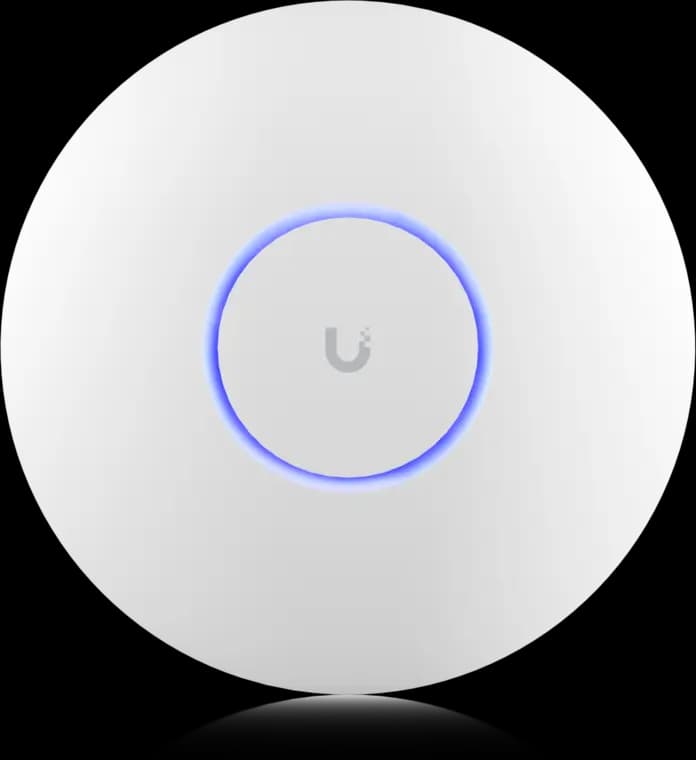
The practical UniFi Wi-Fi 7 baseline for planned ceiling locations: tri-band radios, a 2.5GbE uplink, and controller-based tuning without paying for a 10G AP edge.
- Tri-band Wi-Fi 7
- 2.5GbE uplink
- PoE+ powered
Before you buy: This Amazon link selects Adorama's US-model offer. Confirm Sold by Adorama, New condition, and that the PoE+ adapter is not included.
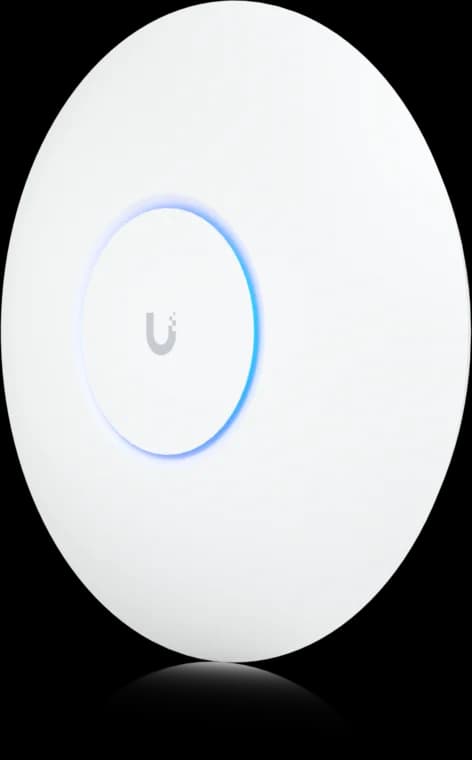
Wi-Fi 6 (802.11ax), 6 spatial streams total
- Dual-band Wi-Fi 6
- 1GbE uplink
- PoE powered
Before you buy: No seller-specific Amazon offer has been verified for this comparison model; the button opens the manufacturer page.
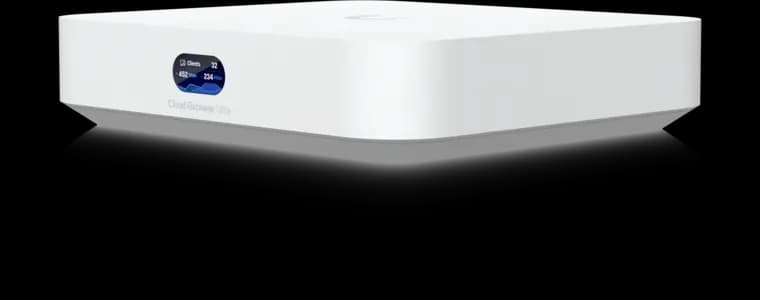
UniFi controller built-in
- 1 Gbps IDS/IPS
- 2.5GbE WAN
- No Protect recording
Before you buy: This Amazon link selects Adorama's offer. Confirm Sold by Adorama, New condition, the final price, and return terms at checkout; the offer can change.
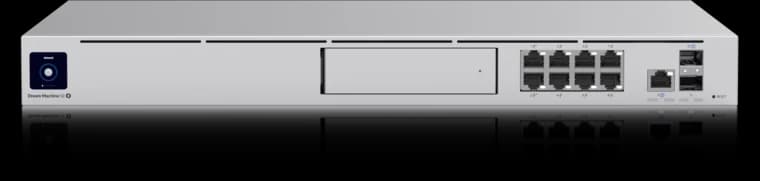
10G SFP+ + 2.5G WAN ports
- 3.5 Gbps IDS/IPS
- 8 × 1GbE PoE
- 1 HDD bay
- Wi-Fi 7 path: Ubiquiti U7 Pro when the office is buying new APs and wants a longer refresh cycle
- Wi-Fi 6 path: Ubiquiti U6 Pro when the office wants a lower hardware cost and the main improvement is placement
- Compact controller: UniFi Cloud Gateway Ultra for smaller offices that already have switching and want simple controller management
- One-box rack option: UniFi Dream Machine Special Edition when the office wants routing, controller management, and PoE in one chassis
What Does a Small Office Wi-Fi Refresh Cost in 2026?
A basic three-AP small office refresh usually starts around the high hundreds for APs and PoE switching hardware alone, then moves into the low-to-mid four figures once gateway changes, new cabling, labor, and documentation are included.
Using official Ubiquiti list pricing checked on March 6, 2026:
- 3 x U6 Pro plus a Lite 16 PoE switch is about $676 before tax, gateway, cabling, and labor
- 3 x U7 Pro plus the same switch is about $766 before tax, gateway, cabling, and labor
- Add mounts, patch materials, cable, and a gateway refresh, and many three-AP hardware bundles land around $900 to $1,400 before installation
Installed totals vary much more because labor depends on the building:
- Easy layout with existing cabling and only light tuning: often low four figures
- Typical office refresh with new AP drops, PoE switching, room-by-room validation, and documentation: often several thousand dollars
- Challenging retrofits with after-hours work, patching, conduit, or fire-rated pathways: usually higher
That is why the best way to use this article is for planning, not exact quoting. If you need a wider budgeting framework, see Network Cabling Cost. If you are only sizing the switch side of the project, see Best Low-Cost PoE Switches.
How Should You Secure a Small Office Wi-Fi Network?
In 2026, new small office deployments should use WPA3 on primary business SSIDs, require Protected Management Frames, and isolate guest traffic from corporate devices.
WPA2 still appears in compatibility scenarios, but it should not be the target state for a fresh deployment. A practical small-office security setup looks like this:
- Primary corporate SSID: WPA3-Personal for very small offices or WPA3-Enterprise where identity-based access matters
- Guest SSID: separate VLAN, client isolation, bandwidth caps, and captive portal or Enhanced Open if the platform supports it
- IoT or legacy SSID: separate VLAN and only keep WPA2 transition mode where a specific device still requires it
- Management: keep APs, switches, and gateways current, and document admin access clearly
Security does not replace radio design. An office can be well secured and still need better roaming behavior or better capacity planning.
What about WPA2 transition mode?
Use WPA2/WPA3 transition mode only when a known legacy device still needs it, and keep those devices off the main corporate SSID if possible.
That keeps the business network aligned with current security practice without forcing a full hardware replacement of every printer or badge reader on day one.
What Are Common Small Office Wi-Fi Installation Mistakes?
The most common small office Wi-Fi mistakes are placing APs above metal ceilings, using channels that are too wide for the environment, broadcasting too many SSIDs, and ignoring PoE headroom for future devices.
These mistakes are common because they make the install feel simpler in the short term:
- Hiding APs in closets or ceiling voids to make the office look cleaner
- Running 80 MHz everywhere because the controller default looks fast
- Creating separate SSIDs for every device class and making roaming worse
- Maxing transmit power and then trying to solve sticky roaming with more APs
- Buying a switch with no spare PoE budget for cameras, door hardware, or a later AP addition
- Skipping the validation walk and assuming coverage bars tell the whole story
If the office has one room with recurring complaints, do not immediately buy another AP. First check channel overlap, power, client counts, switch port speed, and whether the room is actually suffering from wall loss or airtime saturation.
Validation Walk: What Should You Test After Installation?
A small office Wi-Fi validation walk should include live calls, RSSI checks in busy areas, and a quick review of which APs clients actually join during a realistic work period.
Fifteen minutes is enough to catch most obvious mistakes:
- Walk the corridor and desk clusters with a laptop or phone analyzer
- Make two video or voice calls while crossing AP boundaries
- Check the conference room with the door closed
- Compare client counts by AP during a normal busy hour
- Nudge power, channel width, or minimum RSSI only one step at a time
- Start with 1 AP per 1,200 to 1,500 sq ft in open space, then add room capacity where needed
- Place APs over people and walk paths, not inside closets or above foil-backed ceiling spaces
- Use 20 MHz on 2.4 GHz and stay conservative on 5 GHz before widening channels
- Treat Wi-Fi 7 as a serious option for new installs, but validate vendor feature maturity
- Use WPA3 on primary SSIDs and isolate guest or legacy traffic on separate VLANs
- Leave PoE and port headroom for future APs, cameras, or access-control devices
- Finish with a short walk test and live calls before calling the job done
Next Steps
If the office has thick walls, dense meeting rooms, or a retrofit that makes cable routes harder to plan, a clearer design usually helps more than simply adding hardware. We can review a floor plan, lay out AP positions, size PoE correctly, and hand over simple documentation so later changes stay predictable.
FAQs
Do we need Wi-Fi 7?
Not always, but new installs should evaluate it. As of March 6, 2026, the price gap between common Wi-Fi 6 and Wi-Fi 7 SMB APs can be small enough that a longer refresh cycle justifies it.
How many SSIDs should a small office broadcast?
Keep it minimal. Main corporate, guest, and possibly one isolated IoT or legacy network are usually enough. Too many SSIDs add overhead and can hurt roaming.
What if DFS causes drops?
Disable DFS or pin the office to known clean non-DFS channels if you see radar events or unexplained drops. Stability is usually more valuable than theoretical peak speed.
Should conference rooms get their own AP?
Only when the room is consistently dense or separated by enough wall loss that a nearby AP cannot serve it cleanly. Many small offices do fine with a nearby corridor or open-area AP.
References
Plan the project with a site visit
Confirm wiring, equipment, placement, and installation scope before hardware is locked in.