

- When Does Multi-Gigabit Internet Make a Difference?
- What LAN Hardware Do You Need for Multi-Gig Internet?
- Is Wi-Fi 7 Required for a Multi-Gig Smart Home?
- Mesh vs. Hardwired Backhaul: What Actually Wins?
- How Do Router Security Features Affect Multi-Gigabit Speeds?
- What Do 2026 Multi-Gig Upgrades Cost?
- Where Do ISP ONTs and Gateways Bottleneck Multi-Gig?
- Case study: multi-user home with creative workloads
- How Should You Test a Multi-Gig Upgrade?
- FAQs
- References
Gigabit and multi-gig internet help only when the network inside the house can actually pass the speed.
- 1 Gbps is a strong default for most smart homes, but 2 Gbps to 8 Gbps plans help when the house moves large files, runs a NAS, or has several heavy users at once.
- A 1 GbE gateway, switch, wall jack, or ISP handoff will cap the whole path, no matter how fast the internet plan looks on paper.
- Wi-Fi 7 is now the right default for new multi-gig wireless installs, while tuned Wi-Fi 6E still makes sense in existing wired-backhaul networks.
- Hardwired backhaul beats wireless mesh backhaul for stability and latency, even when the mesh system itself is Wi-Fi 7.
- Router security features matter because secure throughput, not headline port speed, determines whether you can use the bandwidth you pay for.
- Networking & Infrastructure services
- Wired vs. wireless: the right mix
- What is Wi-Fi 7 and should you upgrade in 2026?
- Wi-Fi design: right-size access points
When Does Multi-Gigabit Internet Make a Difference?
Multi-gigabit internet improves large file transfers, multi-user workloads, and high-capacity local storage workflows.
Moving from 300 Mbps or 500 Mbps to 1 Gbps reduces download times for large files, game installs, and system updates. Moving beyond 1 Gbps is more selective. Smart home devices such as lights, locks, thermostats, speakers, and cameras do not need multi-gig internet by themselves. The real wins show up when a household has multiple people working at once, several large cloud sync jobs, heavy gaming downloads, or a NAS that feeds laptops, desktops, and media devices throughout the day.
The cost also changes the answer. In March 2026, public U.S. multi-gig examples sit in the low-three-figure monthly range. Google Fiber publicly lists 2 Gig at $100/month, 5 Gig at $125/month, and 8 Gig at $150/month, while AT&T and Frontier also sell multi-gig residential tiers in selected markets. If your local network still tops out at 1 GbE, you will not feel any meaningful difference from those faster ISP plans.
What LAN Hardware Do You Need for Multi-Gig Internet?
Multi-gig internet requires a multi-gig path from the ISP handoff to the client device.
The minimum practical path looks like this:
- Gateway or firewall that can route above 1 Gbps with security features enabled
- Core switch with 2.5 GbE or 10 GbE ports where the traffic actually concentrates
- Wired uplinks for access points, NAS devices, and fixed desktops that move large files
- Cabling that matches the target speed: Cat6 is often enough for 2.5G, while Cat6A is the safer 10G choice for longer runs
- Access points with 2.5 GbE uplinks when the wireless side is expected to deliver above typical gigabit-class Wi-Fi
One weak link flattens the entire chain. A 2 Gbps plan feeding a 1 GbE gateway is still a 1 Gbps experience. The same is true when the gateway is fine but the core switch, wall jack, AP uplink, or NAS link stays at 1G. The best upgrade order is usually gateway first, then switch, then AP and NAS uplinks, then individual endpoints that actually justify more speed.
Is Wi-Fi 7 Required for a Multi-Gig Smart Home?
Wi-Fi 7 is the best default for new multi-gig wireless installs, but it is not a mandatory retrofit for every existing home.
Wi-Fi Alliance now projects 1.1 billion Wi-Fi 7 product shipments in 2026, and Multi-Link Operation is one of the main reasons new Wi-Fi 7 hardware makes sense in busy homes. MLO improves load balancing, reliability, and latency by letting supported devices use more than one link intelligently instead of waiting on one perfect band.
For a new installation, Wi-Fi 7 is the right recommendation because the client mix is shifting, the AP ecosystem has matured, and multi-gig internet plans are now common enough to justify designing for them. For an existing home that already has well-placed Wi-Fi 6E access points with wired backhaul, an immediate rip-and-replace is often unnecessary. A tuned Wi-Fi 6E network still performs very well at 1 Gbps and can still serve many households cleanly above that when the wired side is healthy.
One buyer question is already surfacing in 2026: should you wait for Wi-Fi 8? The short answer is no. IEEE 802.11bn, the work that is commonly discussed as Wi-Fi 8, is focused on ultra-high reliability rather than a simple headline speed jump and is still emerging. For smart-home and prosumer buyers making decisions now, Wi-Fi 7 remains the standard to deploy for the next several years.
Wi-Fi 7 does not fix bad placement, bad backhaul, or a 1 GbE bottleneck behind the access point.
Mesh vs. Hardwired Backhaul: What Actually Wins?
Hardwired backhaul always beats wireless mesh backhaul for stability, latency, and predictable throughput.
Yes, modern Wi-Fi 7 mesh systems are much better than older mesh kits, and a short clean wireless backhaul hop can work well in easy floor plans. But if you want the most stable multi-gig performance, wired backhaul to a 2.5G or 10G switch is still the standard. Ethernet gives the access point or node a dedicated path, so the radio can serve clients instead of spending airtime relaying traffic to another node.
The upgrade hierarchy is simple:
- Ethernet backhaul
- MoCA 2.5 where existing coax is usable
- Short wireless backhaul only when wiring is not practical
For finished homes with coax in the right rooms, the MoCA 2.5 vs Ethernet vs mesh guide explains how to check splitters, filters, and node placement before buying adapters.
If the goal is a premium smart-home network that still feels fast at busy times, spend money on the backhaul path before you spend it on a more expensive mesh badge.
We map where wired uplinks matter, where mesh is acceptable, and how to keep the design aligned with the floor plan instead of the marketing sheet.
Recommended Wi-Fi and backhaul picks
These are the most relevant products for the most common upgrade paths: a wired-first Wi-Fi 7 access point, a consumer-friendly Wi-Fi 7 mesh option, and a MoCA fallback when pulling cable is unrealistic.

The practical UniFi Wi-Fi 7 baseline for planned ceiling locations: tri-band radios, a 2.5GbE uplink, and controller-based tuning without paying for a 10G AP edge.
- Tri-band Wi-Fi 7
- 2.5GbE uplink
- PoE+ powered
Before you buy: This Amazon link selects Adorama's US-model offer. Confirm Sold by Adorama, New condition, and that the PoE+ adapter is not included.

A flexible Wi-Fi 7 mesh with four 2.5GbE ports on each node and a direct three-pack partner offer.
- Tri-band Wi-Fi 7
- 4 × 2.5GbE per node
- 3-pack link
Before you buy: The linked offer is a three-pack. Confirm pack size, hardware revision, and final price at checkout.
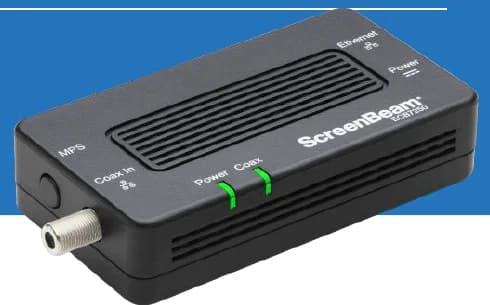
A two-adapter option for wired backhaul when a usable coax path already connects the router area and a weak room.
- 2 adapters in kit
- 2.5GbE port per adapter
- Uses existing coax
Before you buy: Confirm both outlets share a compatible coax system. Satellite and some provider setups are incompatible; DOCSIS 3.1 can conflict. Check splitters and any required point-of-entry filter before buying.
How Do Router Security Features Affect Multi-Gigabit Speeds?
Router security features can cut routing throughput well below the number printed on the front of the box.
This is why secure throughput matters more than theoretical port speed. Deep packet inspection, intrusion prevention, DNS filtering, VPN, and traffic analysis all consume CPU and memory. A useful current example is Ubiquiti's Dream Machine Pro, which is officially rated for 3.5 Gbps of IPS routing. That is far more valuable sizing information than a generic "10G gateway" label.
When sizing a gateway for a smart home, check the secure routing figure first. If the home is buying a 2 Gbps plan, do not buy a gateway that can only hit that number with inspection turned off. We size around the protected state, then validate the result after the configuration is live.
What Do 2026 Multi-Gig Upgrades Cost?
Multi-gig upgrades are affordable when you upgrade the bottlenecks first instead of replacing everything at once.
| Component | Current example cost | Why it matters |
|---|---|---|
| 2 Gig internet | $100/month | Google Fiber's public 2 Gig price is a clean benchmark for current multi-gig ISP pricing |
| 5 Gig to 8 Gig internet | $125 to $150/month | Google Fiber's public 5 Gig and 8 Gig pricing shows how fast monthly cost rises after 2 Gig |
| Wi-Fi 7 access point | $189 | Ubiquiti's U7 Pro is a current official example for a wired-first Wi-Fi 7 AP |
| Secure multi-gig gateway | $379 and up | A gateway that can actually route at multi-gig speeds with security turned on is the first real hardware step |
| 8-port 2.5G switch | $159 official Ubiquiti example; lower-cost unmanaged models exist | This is usually the most cost-effective way to feed APs and a NAS without paying for 10G everywhere |
| 10G core upgrades | $300+ | 10G is still best reserved for uplinks, core aggregation, or a workstation and NAS that truly justify it |
For most homes, a sensible path is incremental. Start with the gateway and a small 2.5G core. Then give faster ports to the APs and NAS. Add 10G only where it changes the day-to-day workflow. That approach usually produces better results than buying a premium 5 Gbps or 8 Gbps plan before the LAN is ready.
One cost detail that matters for creative work is upload speed. A multi-gig fiber plan with symmetrical upload and download speeds is a very different tool from a cable plan that advertises multi-gig download but much lower upload. If the workflow includes cloud backups, large media delivery, remote editing, or constant sync to off-site storage, check the upstream spec before assuming two plans with the same download number are equivalent. The AT&T Fiber vs Spectrum vs Xfinity comparison covers how upload tiers differ across the three largest residential providers.
There is also a physical-installation cost people miss: heat. Multi-gig and especially 10G hardware can run hot in small AV closets, cabinets, and network shelves. A crowded enclosure with poor airflow can shorten component life or lead to unstable behavior under load, so leave ventilation space and do not bury switches and gateways behind warm amplifiers or enclosed media gear.
Recommended core hardware
If the network needs a stronger wired foundation before it needs more WAN speed, these are the products that usually move the result fastest: a UniFi gateway with secure routing headroom, a compact 2.5G switch, and a tester for validating each new run.
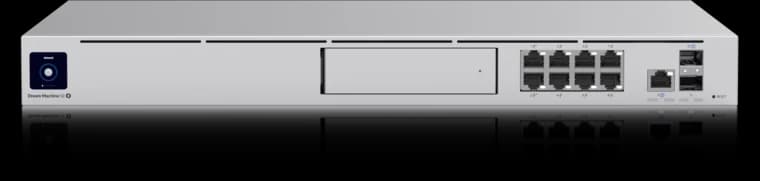
10G SFP+ + 2.5G WAN ports
- 3.5 Gbps IDS/IPS
- 8 × 1GbE PoE
- 1 HDD bay
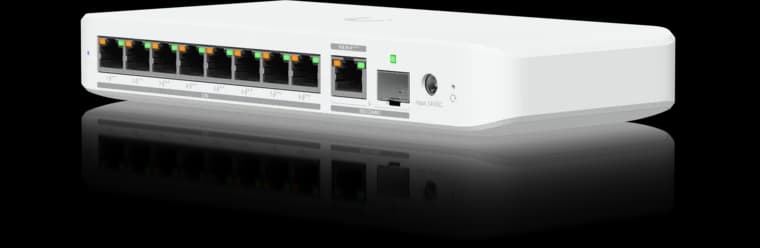
Ubiquiti
Ubiquiti Switch Flex 2.5G PoE
Eight 2.5GbE PoE++ ports in a compact UniFi switch for a small Wi-Fi 7 and camera deployment.
- 8 × 2.5GbE PoE++
- 10G combo uplink
- Power input affects PoE budget
Before you buy: The AC power adapter is sold separately; available PoE output depends on the power input.

Klein Tools
Klein Tools VDV526-100 LAN Cable Tester
A basic wiremap check for an accessible, disconnected Ethernet run when you can reach both ends.
Before you buy: Use only on unpowered cable with permission or after taking possession. It finds opens, shorts and miswires, but does not certify cable speed or replace a professional test report.
Key details
- Verifies pinout and continuity on Ethernet runs
- Remote terminator for one‑person testing
- Useful when validating new backhaul runs
Where Do ISP ONTs and Gateways Bottleneck Multi-Gig?
ISP equipment often creates the first multi-gig bottleneck in the path.
Some ISP ONTs and gateways provide only one high-speed handoff port. If that single 2.5G or 10G port lands on an old 1 GbE switch, the upgrade is effectively over before it starts. The multigig handoff should go straight into the primary firewall or the main high-speed switch, not into a legacy 1G device that was never designed for the new service tier.
The same reality applies to client hardware. High-end phones and laptops increasingly support Wi-Fi 7, but homes still contain older TVs, printers, cameras, streamers, and low-power smart-home devices that do not need multi-gig connectivity. That is normal. The right move is not to chase multi-gig on every endpoint. The right move is to upgrade the infrastructure and the few devices that actually move meaningful traffic, such as AP uplinks, desktops, docks, and NAS links.
Case study: multi-user home with creative workloads
A Scarsdale multi-user home improved only after the LAN bottlenecks were fixed, not after the ISP upgrade alone.
A family of four upgraded to 1.2 Gbps service and still complained about slow media syncs, uneven Wi-Fi, and stalled cloud backups during work hours. The inspection showed the usual pattern: a 1G gateway, a 1G core switch, and access points feeding a busy floor plan over links that were already saturated during overlapping work and streaming periods.
We replaced the gateway with a model sized for secure multi-gig routing, added a small 2.5G core, upgraded two AP uplinks to 2.5G, and moved the NAS to a 10G link. Phones still did not show magical same-room headline speeds, but that was never the goal. Final Cut libraries copied much faster, cloud sync stopped colliding with video calls, and the house finally behaved like it had actually upgraded.
How Should You Test a Multi-Gig Upgrade?
Multi-gig testing should follow the path hop by hop instead of relying on one internet speed test screenshot.
The right order is:
- Verify the ISP handoff speed at the gateway
- Check the gateway's secure throughput with the real configuration enabled
- Test LAN to LAN between wired hosts with
iperf3 - Confirm the switch uplinks and AP uplinks negotiated at the expected speed
- Test Wi-Fi with the actual phones and laptops that matter in the rooms that matter
- Run WAN speed tests only after the local path is known to be clean
This method exposes the real bottleneck quickly. If the WAN is fast but the AP uplink is 1G, the problem is no longer a mystery. If the wired LAN is healthy but the bedroom Wi-Fi is weak, that is a placement problem, not an ISP problem.
- Verify the ISP handoff lands on the correct multigig port
- Size the gateway for secure throughput, not marketing speed
- Add 2.5G ports for access points and the NAS first
- Use Cat6A selectively where 10G really matters
- Test each hop with the security features enabled
- Document ports, uplinks, and negotiated link speeds before closing the job
FAQs
Will multi-gig internet lower ping for gaming?
Usually not by itself. Latency depends more on routing quality, congestion, and whether the gaming device is on wired Ethernet or a clean Wi-Fi link. Higher WAN speed mainly helps game downloads and updates finish faster.
Do I need 10G everywhere?
No. Most homes do not. Use 10G for uplinks, a NAS, or one or two workstations that actually move large files. 2.5G is the better middle step for most smart homes.
Should I replace a good Wi-Fi 6E network right now?
Not automatically. If the current Wi-Fi 6E network has wired backhaul, good placement, and no real complaints, keep it. Wi-Fi 7 is the right default for new installs and major refreshes, not a mandatory emergency upgrade.
Can smart-home devices use all of this extra bandwidth?
Most smart-home devices do not need it. The bandwidth demand usually comes from laptops, desktops, NAS devices, cloud backups, large downloads, and dense household usage, not from the automation gear itself.
Can my ISP gateway or ONT cap the whole upgrade?
Yes. One legacy 1 GbE handoff, one wrong switch port, or one old gateway can flatten the entire path. That is why the ISP device and the first downstream switch are always checked first.
References
Plan the project with a site visit
Confirm wiring, equipment, placement, and installation scope before hardware is locked in.