


Quick answer
If Wi-Fi is slow in only one room, test the same device near the router and in the problem room, then test a second device in both places. If both devices slow down only in that room, look at coverage, obstructions, interference, and how the nearest mesh node connects back to the router. If one device is slow everywhere, fix that device first. If every room is slow, check the internet connection and main router before adding Wi-Fi equipment.
Do not buy a booster after one speed test. A speed test measures a whole path: the internet service, router, Wi-Fi link, and device. The steps below separate those pieces so you can spend on the actual bottleneck. eero's support guidance uses the same basic distinction between one device, one area, and the network as a whole.
Run five controlled tests
Use the same speed-test service and device for your first comparison. Test at roughly the same time, record the result, and note whether you were on Wi-Fi or Ethernet. Do two or three runs rather than relying on one spike. A video call or large file download may reveal intermittent drops that a quick speed test misses.
- Check the internet at the source. Use your router's built-in internet test if it has one, or connect a computer by Ethernet to an appropriate LAN port. If the whole connection is slow, the problem may be upstream or at the gateway.
- Test beside the main router or nearest access point. Use the same device that struggles in the room. Good nearby performance points away from the internet plan as the sole problem.
- Test from the exact problem seat. Test where the laptop, TV, or phone is normally used, with doors in their ordinary position.
- Repeat with another device. If only one laptop is slow, inspect its adapter, software, network selection, and background activity before redesigning the house.
- Check the mesh or AP connection. See which node the device uses and whether that node has wired or wireless backhaul. A node deep in the dead zone may have a weak path back to the router.
If you can, repeat at a busy evening hour. A room that fails only when several people stream or nearby networks are active may need a different fix from a room that is poor all day. Record the symptom: low but steady speed, brief stalls, complete disconnects, or bad video-call audio.
For the wired comparison in step one, use a built-in Ethernet port if the laptop has one or borrow an adapter. If neither is available, a USB Ethernet adapter is a modest diagnostic purchase, not a Wi-Fi upgrade. The Plugable USBC-E2500 supports USB-C and USB-A hosts; check its supported operating systems and port requirements before ordering. Compare the same laptop on cable and Wi-Fi so a different device does not confuse the result. A wired test can narrow the problem, but it does not by itself prove whether the remaining issue is the router, provider, cable or radio path.

Adds a temporary wired Ethernet connection to a laptop without a built-in port so you can compare the same device on Wi-Fi and cable.
Before you buy: Skip it if your computer already has Ethernet or you can borrow an adapter. It does not improve Wi-Fi; check host and operating-system compatibility.
Key details
- 2.5GbE RJ45 adapter for USB-C or USB-A hosts
- Useful for laptop testing, workstations, and temporary high-speed transfers
- Works best when connected to a 2.5GbE switch or multi-gig router port
| Result | Likely area to investigate | Next action |
|---|---|---|
| All devices slow in all rooms | ISP, modem/ONT, gateway or main network | Test a wired device and check provider status before adding mesh |
| One device slow everywhere | That device or its Wi-Fi adapter | Update, reconnect and compare with another device |
| Many devices slow only in one room | Coverage, obstruction or interference | Move or reposition the nearest AP/node and retest |
| Fast beside mesh node, slow in room | Last wireless hop to the room | Try a less obstructed placement or a closer AP |
| Slow beside mesh node, fast beside main router | Mesh backhaul or node health | Move the node closer to the main network or use wired backhaul |
| Wi-Fi poor but Ethernet good in room | Wireless path | Evaluate AP placement rather than a faster internet plan |
This is a diagnostic map, not a promise that every symptom has one cause. More than one issue can be present. For example, a weak mesh backhaul and an old laptop can compound each other.
Try the no-purchase fixes first
Move a router or mesh node out of a cabinet, behind a TV, or away from a large appliance. Keep the path toward the problem room as open as the home allows. Eero's placement guidance notes that wireless backhaul needs a good connection between nodes; moving a node halfway toward the dead zone can work better than putting it at the far end of the house.
Check which access point the device has joined. Some devices remain connected to a farther node until they reconnect. Turn Wi-Fi off and on on the device, then retest. If a single device has the problem, update its operating system and Wi-Fi driver where applicable, forget and rejoin the network, and pause large background uploads during the test. Check whether the device is using a guest network, VPN, or battery-saving mode that changes performance.
In an older home, plaster, stone, brick, metal lath, and additions can make a short straight-line distance misleading. Our access-point placement guide for plaster and stone homes explains why a floor plan and a few measurements beat a simple square-footage rule. Avoid assuming that a newer router in the same basement corner will make the far office reliable.
Decide when another node or a cable makes sense
If repositioning improves the room but cannot cover it consistently, a second access point or mesh node may be appropriate. Place a wireless node where it still receives a strong upstream signal, not at the exact spot where the original signal vanishes. Test both the client-to-node link and node-to-router path. More radios can make a network harder to tune if they overlap badly or share a weak backhaul.
If the room is a daily work location, a wired access point or Ethernet outlet is often the more durable fix. Existing coax may support MoCA backhaul in some finished homes; our MoCA versus Ethernet versus mesh guide helps compare those paths. The right-size AP guide covers how to decide the number and placement of access points without adding unnecessary gear.
If the test points to weak wireless backhaul and usable coax connects the router area to the weak room, a two-adapter MoCA kit is one possible path to a wired node. ScreenBeam's ECB7250K02 is a specific example, but ScreenBeam lists provider and coax incompatibilities and says two adapters are normally needed unless the gateway has MoCA built in. Confirm the coax path, splitters and provider setup first. Skip the kit when Ethernet is available or the coax system cannot be verified. The linked MoCA guide covers the design in more detail.
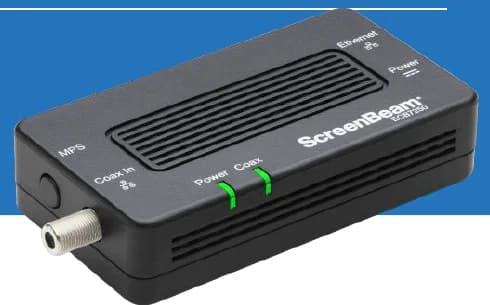
A two-adapter option for wired backhaul when a usable coax path already connects the router area and a weak room.
- 2 adapters in kit
- 2.5GbE port per adapter
- Uses existing coax
Before you buy: Confirm both outlets share a compatible coax system. Satellite and some provider setups are incompatible; DOCSIS 3.1 can conflict. Check splitters and any required point-of-entry filter before buying.
Replacing the primary router makes sense only when the evidence points to that device: for example, a wired test at the gateway is consistently poor while the provider connection tests normally, or the router cannot support the needed network configuration. A new router placed in the same obstructed corner is unlikely to fix one distant room. If the existing system is eero, a compatible additional node may be an option after a placement test; check model compatibility and backhaul before ordering. For other systems, use the manufacturer's compatibility guidance. There is no universal router or booster purchase for this symptom.
Choose the next step from the evidence
- One device fails in every room: troubleshoot that device and its connection before buying network hardware.
- Several devices fail only at one seat: change placement, then retest there. If the improvement is incomplete, survey a better access-point location.
- Performance is poor beside a wireless mesh node but good beside the main router: improve the node's upstream path or evaluate wired backhaul.
- Wired and wireless devices are slow throughout the home: investigate the internet handoff, gateway and provider before adding a node.
If the household cannot make a wired comparison, keep the conclusion provisional. Note which tests were possible and ask the provider or installer to help isolate the remaining link. That is still more useful than treating one speed-test number as a shopping list.
For example, if the same laptop gets a stable call beside the main router but drops audio at the office desk, and a phone also struggles at that desk, investigate the room's wireless path first. If the laptop drops calls in both places while the phone stays reliable, investigate the laptop. These comparisons do not identify an exact interference source, but they narrow the next visit or purchase to the part of the system that changed.
There is no universal minimum speed that makes a room “fixed.” For work calls, stability and latency during the call matter as much as a top download number. For a TV, repeatable playback matters more than an isolated peak. Write down the outcome you need, then test that experience after each change.
Keep a short evidence log
Before contacting an installer or internet provider, record the router and access-point models, the room and device, connection type, time, two or three test results, and the real symptom. Add a floor plan with the internet entry and current nodes marked. If the problem is a work call, note whether it fails on Wi-Fi only or also on Ethernet. This makes it much easier to separate an ISP issue from a home-network design issue.
Do one change at a time and repeat the same test. If you move a mesh node, do not also change the internet plan and the laptop driver in the same hour. When the room improves, keep the placement and note it in the home's network documentation. If it does not, the log tells you what has already been ruled out.
For a measured coverage and backhaul survey, see our networking and infrastructure services.
Share the floor plan, current equipment locations, and a few test results. Data Wire Solutions can survey coverage and recommend placement, wiring, or backhaul changes that address the measured problem.
Frequently asked questions
Will a faster internet plan fix one slow room?
Usually only if the incoming connection is the bottleneck. If the same device is fast near the router and slow in one room, first investigate the in-home wireless path.
Where should I put a mesh node?
Put it where it still has a good connection to the main network and can serve the weak area. A node inside a dead zone often has too little signal to relay well.
Is Ethernet always necessary?
No. Better placement may solve the issue. Wiring is especially valuable for a work-critical room, a difficult plaster or stone path, or a mesh node whose wireless backhaul remains weak.
References
- eero: Slow speeds in one area or on one device, reviewed September 29, 2026.
- eero: Slow speeds across the whole network, reviewed September 29, 2026.
- eero: Mesh placement guidance, reviewed September 29, 2026.
- Plugable: USBC-E2500 compatibility and specifications, reviewed September 29, 2026.
- ScreenBeam: ECB7250 compatibility and requirements, reviewed September 29, 2026.
Plan the project with a site visit
Confirm wiring, equipment, placement, and installation scope before hardware is locked in.