

- Quick summary
- Essential Hardware for a Small Business Network
- How Should a Small Business Network Flow?
- How Do ISP Speed and Security Features Change the Design?
- Which VLANs Should a Small Office Separate?
- How Should Office Wi-Fi Security and Remote Access Be Handled?
- What Office Devices Should Be Hardwired?
- How Many Access Points Does a 10-30 Person Office Need?
- How Much PoE, UPS, and Rack Headroom Should You Plan?
- Should You Choose Cloud or Local Network Management?
- What Does a Practical 10-30 Person Office Build Look Like?
- 2026 Small Business Network Installation Costs
- Recommended gear
- Which Design Fits Your Office Best?
- FAQs
- References
Quick summary
Small business network design for a 10-30 person office starts with a clean ISP handoff, one managed gateway, one managed PoE switch, separated staff and guest policy, wired connections for fixed devices, and enough access points to handle the busiest hour. Most offices in this range land at 2 to 5 access points, 3 core VLANs, and an installed budget near $6,500-$11,000 for a typical 20-person build.
If the office depends on VoIP, cameras, conference rooms, card payments, or guest Wi-Fi, this should be treated as infrastructure rather than a router swap. For broader implementation help, pair this guide with commercial technology services and networking infrastructure services.
For the system-specific layers around that core, use our VoIP, intercoms, and remote work guide, best VoIP phone systems for small business, and conference room AV guide.
Essential Hardware for a Small Business Network
A small business network should include an ISP handoff, a gateway and firewall, managed PoE switching, properly placed Wi-Fi access points, wired connections for critical devices, and battery backup for the core stack.
That foundation covers most offices better than a consumer mesh kit or an ISP all-in-one box. The office network often carries phones, printers, room systems, cameras, badge readers, streaming devices, and building controls alongside laptops. Once those devices share one flat network with no labeling, segmentation, or backup power, support gets harder and outages become more disruptive.
If the office will rely on camera recording across one or more sites, pair this with the NVR vs NAS vs cloud storage guide so the video-storage model is decided before the rack is finalized.
For most offices, the baseline stack looks like this:
| Layer | What it does | What usually belongs here |
|---|---|---|
| Internet handoff | Brings service into the office | Fiber ONT, cable modem, or landlord handoff |
| Gateway / firewall | Routes traffic and enforces security policy | UniFi gateway, Omada router, or similar managed platform |
| Core PoE switch | Feeds APs, phones, cameras, and room gear | Managed PoE switch with spare wattage and spare ports |
| Wi-Fi access points | Provides office wireless coverage | Ceiling APs with wired backhaul |
| Wired endpoint layer | Keeps key devices off shared airtime | Desktops, printers, room systems, cameras, VoIP phones |
| Power protection | Keeps core gear stable through short outages | Rack UPS for gateway, switching, and ISP gear |
One supportable stack is better than a mix of disconnected routers, unmanaged switches, and one-off Wi-Fi extenders.
How Should a Small Business Network Flow?
The network should flow in a simple order: ISP handoff into the gateway, gateway into the managed switch, and the managed switch out to access points and wired endpoints.
This is the basic path:
- The ISP or landlord handoff lands at a clearly labeled demarc.
- The handoff feeds the gateway or firewall.
- The gateway uplinks to the main managed switch.
- The switch feeds access points, phones, cameras, room gear, printers, and desk drops.
- Patch panels, labels, and documentation make the network serviceable after launch.
The key is keeping each role clear. The ISP should not also be your Wi-Fi controller. The conference room should not be hanging off a random desktop switch. And the front desk printer should not share the same unmanaged chain as the access points serving the whole office.
For a typical one-closet office, the most common rack order is:
- ISP ONT or modem
- Gateway and firewall
- Managed PoE switch
- Patch panel
- UPS
If the office is large enough to need a second switch in another area, that second switch should still connect back cleanly to the core rather than acting like an improvised island. This is also where networking infrastructure guide for Westchester County and network cabling cost planning become relevant, because pathway quality and labeling often determine whether a future move is simple or painful.
Before launch, the same design should be captured in a network documentation handover package: port schedule, IP plan, VLAN notes, inventory, backup locations, and admin ownership.
The ISP box may be fine as a temporary bridge, but it is rarely the right long-term platform for office VLANs, PoE planning, logging, or support ownership.
How Do ISP Speed and Security Features Change the Design?
Match the gateway's WAN path and inspected throughput to the internet service you are buying.
Multi-gig business internet is increasingly available, so WAN planning should be treated as part of the design, not an afterthought. That changes the design conversation because routing throughput and security-inspected throughput are not the same number.
Ubiquiti's tech specs for the Dream Machine Special Edition (UDM-SE) list a 10G SFP+ default WAN port and 3.5 Gbps of IDS/IPS throughput. The planning lesson is broader than that specific model: if the office will run IDS or IPS, the inspected-throughput figure matters more than the headline routing figure. A faster internet circuit will not produce faster inspected traffic if the gateway becomes the bottleneck.
Use this check before you lock a hardware list:
- Confirm the actual ISP speed tier, not the assumed tier from the previous tenant.
- Check the gateway's security-inspected throughput if IDS or IPS will be enabled.
- Make sure the gateway-to-switch uplink is not slower than the internet tier you are paying for.
- Keep the ISP device in bridge or passthrough mode when the managed gateway is taking over policy and routing.
Which VLANs Should a Small Office Separate?
Most small offices should separate staff, guest, and infrastructure traffic at a minimum, then add voice, camera, or POS segmentation where the business actually needs it.
Not every office needs six VLANs on day one. Many do need more than one flat LAN. Segmentation keeps routine office traffic from mixing with guests, cameras, and specialized systems that carry different risk.
Use this as a practical starting point:
| Network | Typical devices | Why separate it | Notes |
|---|---|---|---|
| Staff LAN / SSID | Employee laptops, managed desktops, line-of-business apps | Main business traffic and identity-based access | Primary trusted network |
| Guest Wi-Fi | Visitor phones and laptops | Keeps guest traffic away from office systems | Internet only, rate-limited if needed |
| Voice | VoIP phones and voice adapters | Keeps phone policy and troubleshooting cleaner | Useful when voice quality matters or phones are numerous |
| Cameras / security | NVRs, cameras, door controllers | Limits east-west exposure and simplifies support | Often wired only |
| Building / IoT | Printers, displays, thermostats, AV gear | Keeps lower-trust or hard-to-update devices contained | Good place for room systems and displays if policy requires |
| POS / payments | Payment terminals and related systems | Reduces scope creep and keeps payment devices easier to govern | Review against merchant and compliance requirements |
If the office processes card payments, segmentation matters even more. The PCI Security Standards Council says network segmentation is not itself a PCI DSS requirement, but strongly recommends it because a flat network puts every system in scope of the assessment. It also notes that separate network segments alone do not create PCI segmentation; the separation has to be enforced and verified. Keep payment devices and related systems off the same flat network as general office devices, and confirm the details with your payment processor or acquirer.
For Wi-Fi, many offices are best served by only two or three SSIDs:
- Primary staff SSID
- Guest SSID
- Optional IoT or device SSID when the office really needs it
Too many SSIDs increase overhead and create support clutter. The answer is clean policy, not a long list of broadcast names.
How Should Office Wi-Fi Security and Remote Access Be Handled?
Use WPA3-capable settings for 6 GHz Wi-Fi and provide remote access through the gateway's managed VPN tools.
Ubiquiti's 6 GHz guidance is clear: 6 GHz Wi-Fi requires a WPA3 security protocol and Protected Management Frames (PMF). Its UniFi Network application also offers a WPA2/3 transition mode for personal networks, which can ease client reconnection. For offices mixing modern laptops with older printers or specialty devices, Ubiquiti's advice is to create a separate SSID without 6 GHz for legacy hardware rather than weakening the primary staff network.
For hybrid staff and outside IT support, modern gateways should also handle remote access directly. UDM-SE technical specs list Teleport, WireGuard, OpenVPN, and site-to-site VPN options (Site Magic and IPsec). That is a better operational baseline than exposing desktop services to the public internet or relying on improvised port forwarding.
Use this rule set:
- Keep the main staff SSID on modern security settings that support 6 GHz and current client devices.
- Use a separate legacy or device SSID if older printers, scanners, or IoT gear do not behave well with WPA3-capable settings.
- Give remote staff VPN access through the gateway, not through forwarded office PCs.
- Keep MSP and vendor access time-limited and documented rather than permanently open.
What Office Devices Should Be Hardwired?
Hardwire any fixed device critical to daily operations, including desktop computers, VoIP phones, security cameras, printers, and room AV systems.
Wi-Fi is for mobility. The office backbone is for stability. A common mistake is leaving too many fixed devices on wireless because it seems easier during move-in. That usually means more congestion, more roaming noise, and more support tickets later.
Use this as a practical map:
| Device type | Why it should be wired | What Wi-Fi does worse |
|---|---|---|
| Desktop workstations | Stable bandwidth for cloud apps, uploads, and long work sessions | Adds airtime contention for devices that do not move |
| Printers and copiers | Predictable availability for the whole office | Roaming and reconnection issues create avoidable support tickets |
| Conference room PCs and room systems | Keeps meetings, screen sharing, and updates stable | Drops and latency show up immediately in live meetings |
| VoIP phones | Supports consistent call quality and cleaner power design with PoE | Voice quality suffers faster under airtime congestion |
| Security cameras and NVRs | Continuous traffic belongs on fixed links | Large video streams compete with staff devices |
| Reception displays and streaming boxes | Keeps lobby and signage systems predictable | Consumer Wi-Fi behavior is often the first thing to drift |
| Access points | Every AP should have wired backhaul | Mesh backhaul trades away throughput and predictability |
The line is straightforward: if the device does not move and the business notices immediately when it drops, give it a cable. That is one reason small office Wi-Fi AP density planning and best low-cost PoE switches are adjacent topics, not separate worlds.
Laptops, phones, tablets, and guest devices are the right place to spend Wi-Fi airtime. Fixed business equipment is not.
How Many Access Points Does a 10-30 Person Office Need?
A 10-30 person office usually needs about 2 to 5 access points, depending on square footage, room count, wall loss, and how many people join calls at the same time.
For many offices, a reasonable first pass is one AP per 1,000 to 1,500 square feet of open office area, then extra capacity near meeting rooms or dense private-office clusters. Coverage alone is not the right sizing rule. Airtime demand matters more.
A quick planning baseline:
10-person office: often2 to 3APs20-person office: often3 to 4APs30-person office: often4 to 5APs
That count shifts when the office has:
- Heavy call density
- Thick masonry or older retrofit walls
- Several conference rooms
- Large training or collaboration spaces
- A detached office wing or mezzanine
Wi-Fi 6 is still acceptable for many smaller offices. For rip-and-replace installs in 2026, Wi-Fi 7 is reasonable when the office is already replacing switching and access points. Cabling matters either way. Run Cat6A to access point locations when walls or ceilings are open and you want cleaner multi-gig backhaul headroom for newer AP generations.
The design rule is still simple: place APs where people work, not where cable is easiest. Avoid closets, above metal obstructions, and bad ceiling locations that look convenient but serve the wrong part of the floor.
We can map gateway placement, switch location, AP count, and likely cable routes before the install turns into a change-order problem.
How Much PoE, UPS, and Rack Headroom Should You Plan?
Plan spare PoE wattage, spare switch ports, and UPS runtime from the start, because office networks almost always grow after move-in.
This is where otherwise decent projects get cornered. The switch has just enough power for the current APs, then the office adds cameras, a door controller, or a new conference room. The rack has no room left, the labels are incomplete, and every upgrade becomes a rebuild.
At minimum, plan for:
- Spare PoE budget above the day-one device list
- Spare switch ports for future desks, cameras, or room gear
- A UPS covering the ISP handoff, gateway, and core switch
- A patch panel or at least labeled terminations
- Documentation showing which port feeds which room or device
The UDM-SE is a useful example of what small-office gear looks like: a managed gateway with a built-in 8-port switch and a 180W PoE budget, next to a separate managed PoE switch for the rest of the office. Whatever ecosystem you choose, the planning target is the same: managed routing, managed switching, and PoE capacity sized for more than laptops.
On continuity, the goal is not all-day runtime from a small UPS. It is enough power to ride through short outages, avoid hard crashes, and keep the office stable long enough for orderly recovery. A short-depth rack UPS such as CyberPower's CP1500PFCRM2U is practical for shallow wall racks and smaller closets because it provides 1500VA / 1000W capacity in a 2U chassis at 10.5 inches deep. CyberPower lists its runtime at about 10 minutes at half load and about 3 minutes at full load, which is the right scale for riding through short outages and shutting down cleanly.
If the business also needs backup WAN, VoIP overflow, or cellular failover rules, use the office internet resilience guide before finalizing the gateway and UPS design.
Should You Choose Cloud or Local Network Management?
Choose local management when you want the controller on-site, and choose cloud management when remote oversight and zero-touch deployment matter more.
For a 10-30 person office, either model can work well if the business owns one coherent stack and one support path. The main tradeoff is operational style, not basic networking quality.
TP-Link's Omada pages show the distinction clearly. Its software controller is a free on-premises controller with optional cloud access, while its cloud-based controller is fully cloud-hosted, with a free Essentials tier and a subscription-based Standard tier. Both support zero-touch provisioning. That is the right frame for buyers to use across vendors: local control, cloud control, or a hybrid of the two.
An all-in-one appliance such as the UDM-SE already commits the office to an appliance-based local or hybrid controller model. That is not a problem. It is just an architectural choice that should be explicit. If the business wants a separate gateway and a different controller path, that should be decided before the rack is built.
The practical filter is simple:
- Choose local or appliance-based control when the business wants the controller in its own rack or hardware.
- Choose cloud-hosted control when remote administration and distributed-site rollout matter more than local controller ownership.
- Avoid mixing platforms unless there is a real operational reason, because split dashboards usually create slower support.
What Does a Practical 10-30 Person Office Build Look Like?
A practical office build scales from one managed gateway and one PoE switch to a modest multi-AP wired network with separate staff and guest policy.
| Office size | Common network shape | What usually gets wired | What to watch |
|---|---|---|---|
| 10 seats | 1 gateway, 1 PoE switch, 2-3 APs | Desks, printer, conference room, APs | Do not undersize PoE if cameras or phones are coming next |
| 20 seats | 1 gateway, 1 main PoE switch, 3-4 APs | Desks, room systems, phones, printer, APs | Meeting-room density and guest policy often matter more than raw ISP speed |
| 30 seats | 1 gateway, 1-2 managed switches, 4-5 APs | Desks, room systems, printers, phones, cameras, APs | Second switch uplink, rack space, and segmentation become more important |
A practical 20-seat office often looks like this:
- Fiber or cable handoff into the rack
- One managed gateway and firewall
- One 16-port PoE switch
- Three or four ceiling APs
- Wired drops for front desk, copier, conference room, printer, and any fixed desktops
- Guest Wi-Fi isolated from staff traffic
- UPS covering the core stack
The value is predictability: calls stay cleaner, guest traffic stays contained, and future adds do not require guesswork.
2026 Small Business Network Installation Costs
In 2026, a typical 20-person office network costs about $6,500-$11,000 installed, including roughly $2,500-$4,500 in core hardware and materials.
That is why honest planning should separate hardware from installed scope. The gateway is rarely the expensive part of the job. Cabling, pathway work, rack cleanup, labeling, testing, and after-hours coordination usually move the number more than the firewall itself.
Use these planning ranges as a starting point:
| Office type | Typical hardware and materials | Installed planning range | What pushes the number up |
|---|---|---|---|
| Small office, 10 seats | $1,500-$2,500 | $4,000-$7,000 | New drops, patching, after-hours work, landlord access |
| Standard office, 20 seats | $2,500-$4,500 | $6,500-$11,000 | More APs, larger switch, rack cleanup, VoIP and room gear |
| Busier office, 30 seats | $4,000-$7,000 | $9,000-$16,000 | Extra cabling, second switch, cameras, compliance, denser rooms |
Those are planning ranges, not flat quotes. They reflect the office network shapes above and typical cabling and retrofit scope, and actual hardware pricing changes over time. In older Westchester offices, after-hours scheduling, masonry walls, shared building pathways, and landlord rules can move the labor faster than the hardware list does.
We can turn seat count, closet location, AP density, and cabling routes into a practical office network quote.
Recommended gear
These are the clearest gear picks for a straightforward small-business network stack. The point is not to buy this exact cart blindly. It is to use a coherent gateway, switching, Wi-Fi, and backup-power path.
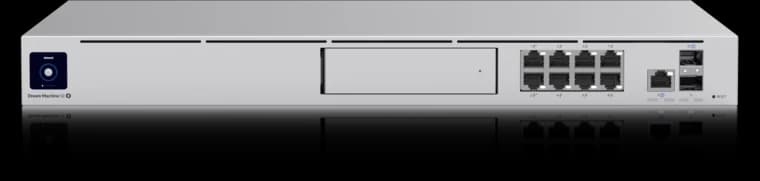
10G SFP+ + 2.5G WAN ports
- 3.5 Gbps IDS/IPS
- 8 × 1GbE PoE
- 1 HDD bay

Ubiquiti
Ubiquiti Switch Pro Max 16 PoE
A UniFi closet switch for a few 2.5GbE APs plus a larger group of gigabit cameras and devices.
- 4 × 2.5GbE PoE++
- 12 × 1GbE PoE+
- 180W PoE budget
Before you buy: Only four ports are 2.5GbE; the other twelve are gigabit. Check current stock.
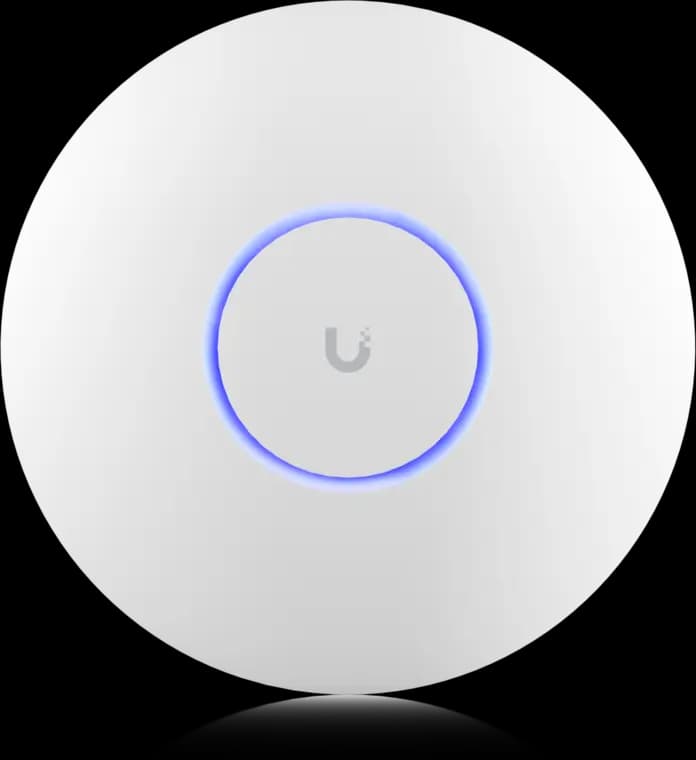
The practical UniFi Wi-Fi 7 baseline for planned ceiling locations: tri-band radios, a 2.5GbE uplink, and controller-based tuning without paying for a 10G AP edge.
- Tri-band Wi-Fi 7
- 2.5GbE uplink
- PoE+ powered
Before you buy: This Amazon link selects Adorama's US-model offer. Confirm Sold by Adorama, New condition, and that the PoE+ adapter is not included.
1500VA / 1000W pure sine wave UPS for rack and closet installs
Key details
- Short-depth 2U form factor suits compact commercial racks
- Practical backup layer for the PoE++ switch that feeds the access hub
Which Design Fits Your Office Best?
The best office design is the one that matches seat count, call density, building constraints, and operational risk.
Use this decision frame:
- Choose a compact managed stack when the office is under 10 seats, the rack is simple, and growth is modest.
- Choose a full managed gateway plus dedicated PoE switch when the office is in the 10-30 seat range or expects phones, cameras, and conference rooms to share the same network.
- Put more effort into segmentation and continuity when the office handles guest traffic, payments, or security systems.
- Spend on cabling and placement before spending on premium APs if the current network problem is mostly layout, not hardware age.
If you are comparing controller ecosystems directly, UniFi vs TP-Link Omada is the better side-by-side article. This guide is narrower: how to lay out a small business network so the office runs cleanly day to day.
FAQs
Can VoIP phones and desktop PCs share the same ethernet drop?
Yes, if the switch, phone, and policy are set up correctly. Many offices run the desktop through the phone's pass-through port, but voice and data should still land on the right VLANs.
Will older printers or IoT devices work on a 6 GHz office SSID?
Often no. Older devices that do not handle WPA3 or 6 GHz well should usually be moved to a separate non-6 GHz device SSID.
Is WireGuard enough for hybrid staff remote access?
Usually yes for a small office. A managed gateway with WireGuard or a comparable built-in VPN is a practical baseline when access is scoped and documented correctly.
Do I need a separate controller if I buy a UDM-SE?
No. The UDM-SE is already an appliance-based UniFi controller, gateway, and firewall in one chassis.
Should a small business buy mesh Wi-Fi or ceiling access points?
Ceiling access points with wired backhaul are the better long-term office design. Mesh is better treated as a temporary fix or a special-case extension.
Does a small office need a UPS for the network?
Yes, at least for the ISP handoff, gateway, and main switch. The goal is graceful short-outage protection and cleaner recovery, not all-day backup.
What is the most common small office network mistake?
Treating the office like a home network. Most problems come from flat LANs, unmanaged switches, poor AP placement, or leaving too many fixed devices on Wi-Fi.
References
- Ubiquiti Dream Machine Special Edition Tech Specs. Checked October 19, 2026.
- Ubiquiti: Getting Started with 6 GHz. Checked October 19, 2026.
- CyberPower CP1500PFCRM2U. Checked October 19, 2026.
- TP-Link Omada: Software Controller. Checked October 19, 2026.
- PCI Security Standards Council: Guidance for PCI DSS Scoping and Network Segmentation. Checked October 19, 2026.
Plan the project with a site visit
Confirm wiring, equipment, placement, and installation scope before hardware is locked in.